

- Start node – The entry point of the journey, labeled “Start of journey”.
- Modules – The verification steps a customer goes through.
- End node – The final step of the journey, labeled “End of journey”.
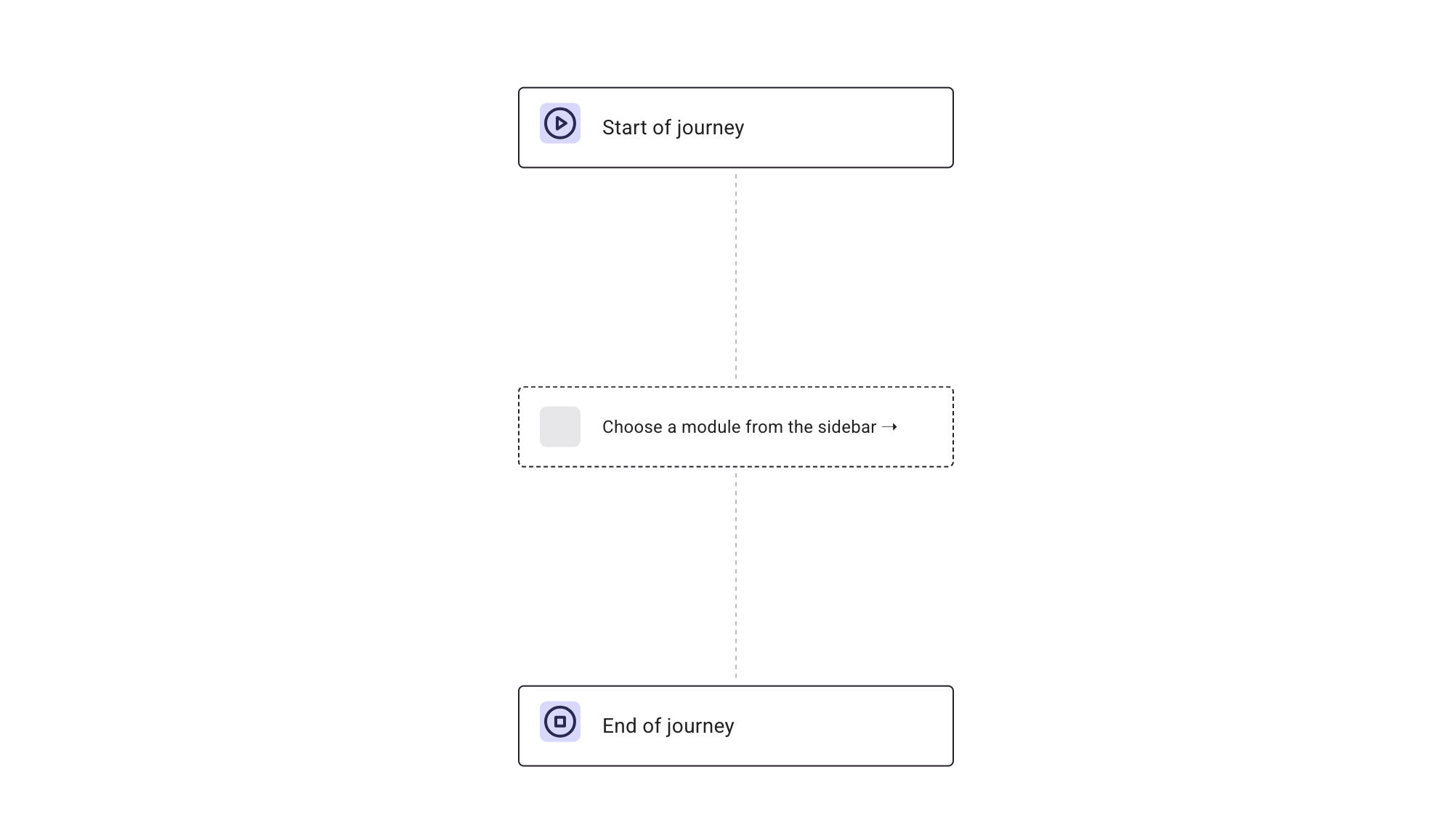
Add modules
Modules define what happens at each stage of the journey. Each module performs a specific function, such as identity verification, fraud detection, or decision-making. To find modules, you can either select the “Processing” category that will open up a long list of modules and variants, or you can use the search bar to search directly for modules and variants. Follow these steps to add a module:- Go to Browse and add modules in the left sidebar.
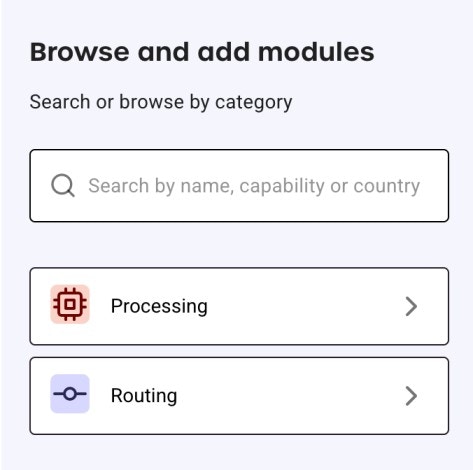
- Use the search bar to find a module by:
- Module name, for example, “Data Verification”
- Capability, for example, “Age Verification”
- Click the module that you want to add.
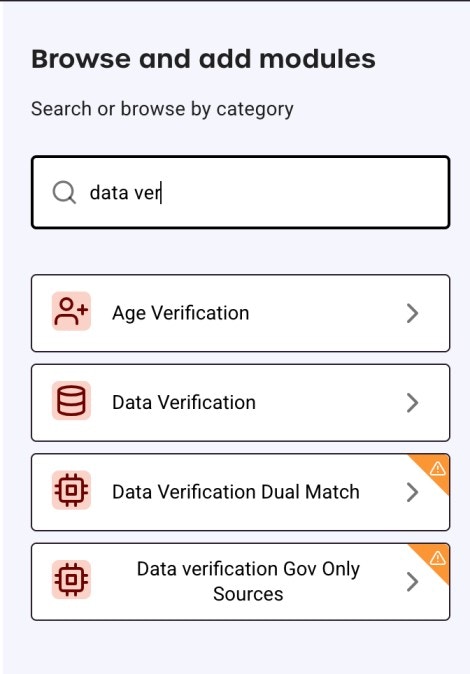
The orange warning icon indicates that the module is not licensed or included in your contract and requires activation by the GBG team.
- Click Add to journey to insert it into your workflow.
.jpg?fit=max&auto=format&n=wtQrQDGWEOTCei9M&q=85&s=e6920bd100d7216a4eed76cea16bad34)
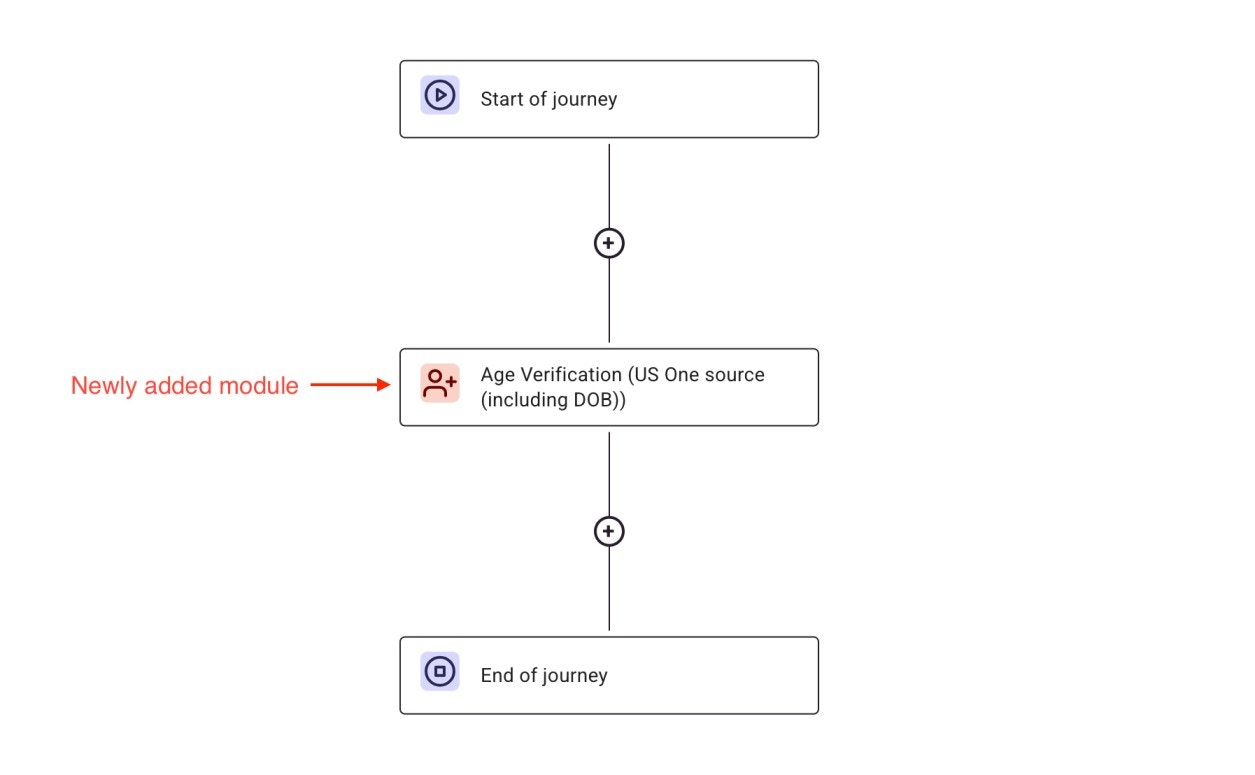
- To add more modules to the journey, click the ”+” sign in the journey.
Modules that require specific configurations will prompt you to complete
additional fields before saving.
Configure modules
Once a module is added, it needs to be configured to function correctly. Each module has unique configuration settings. Some require input data, while others rely on predefined conditions to determine the next steps. To configure a module:- Click the module inside the journey editor.
- Review the module’s available settings and options.
- Modify the required fields (for example., label, variants, outcomes).
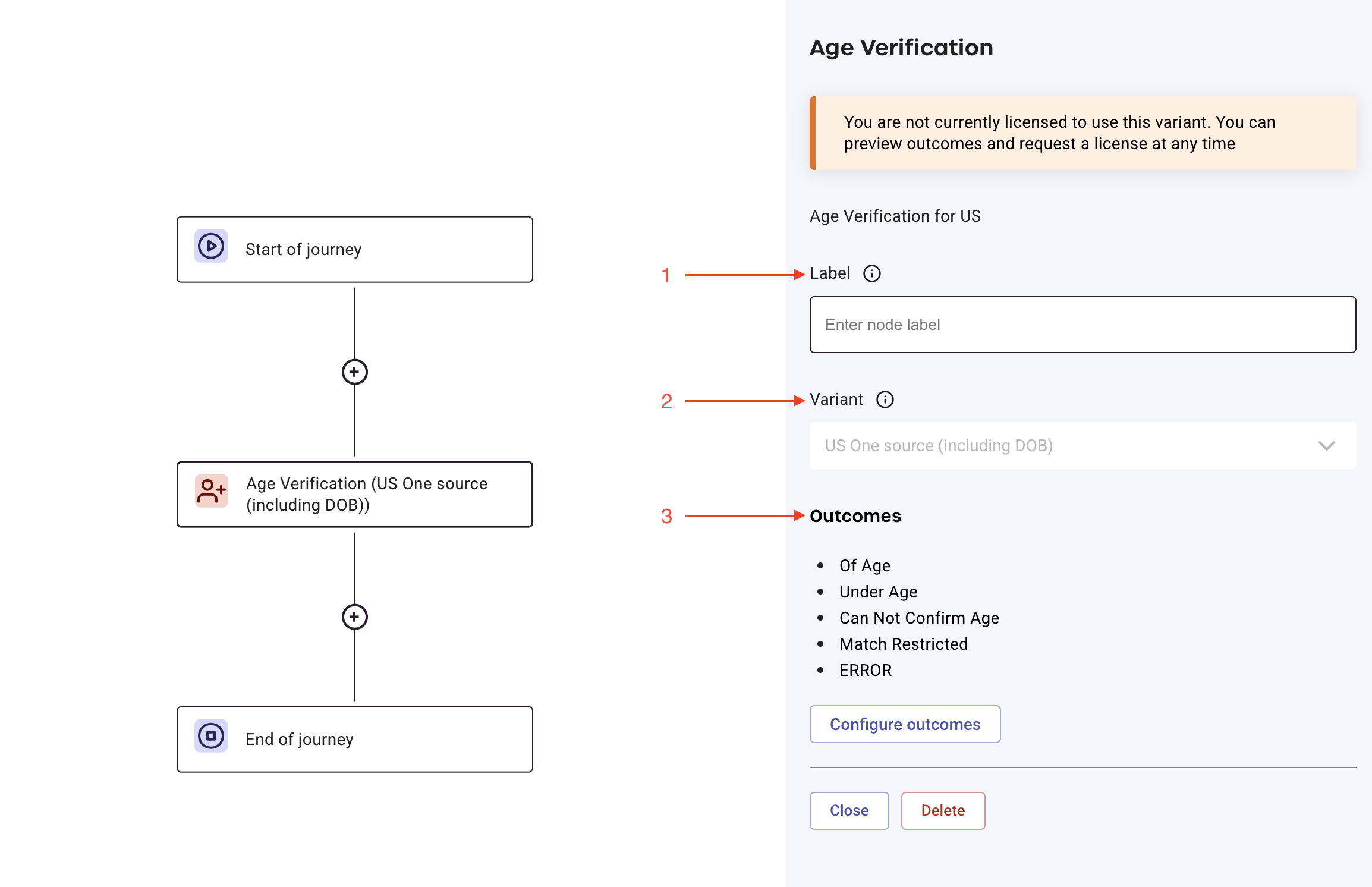
- Click Configure outcomes to define outcomes. Outcomes determine what happens based on the module’s results.
Delete modules
To delete a module from your journey:- Right-click the module you want to delete.
- Select Delete from the context menu.
What’s next?
After configuring your journey, the next step is to define decision logic and publishing options.- Set up routing: Define conditions that change a journey’s path.
- Set up evaluation: Add decision points like accept, reject, or manual review.
- Publish journeys: Deploy your journey for testing or production.