Build a document upload and verification flow with GBG GO APIs and document modules
Learn how to build a complete document upload and verification flow using GBG GO APIs and document modules.
In this tutorial, you will learn how to use the GBG GO APIs to build a document upload and verification flow.This tutorial illustrates one of the most common use cases for customer verification and onboarding. By following along, you’ll get started quickly by implementing the GO APIs.
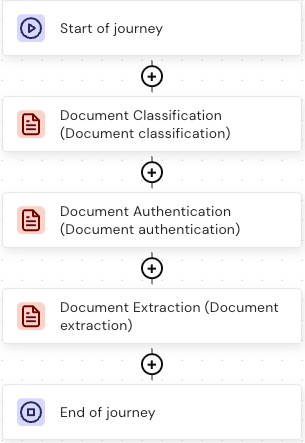
Add the documents modules to the journey, as shown in the image below:
For instructions on how to add modules to a journey, refer to Configure modules.
Click Publish to Preview.
Modules come with default outcomes, which is used in this tutorial. You can configure different outcomes for each module. To learn more about configuring outcomes, refer to How to configure module outcomes in GO.
Navigate to Dashboard in the journey builder to get your resource ID and version for integrating the journey with the API and app.
Next, set up the development environment for integration.
Next, run the command below to install Axios for cleaner error handling and automatic request and response transformations:
BASH
npm install axios
After installation is completed, create a .env.local file in your root directory to store the environment variables for your API credentials and base URL:
Replace the placeholder values with your actual GBG GO API credentials and journey details. Refer the Quickstart for developers guide for more information on obtaining these credentials.
Next.js API routes run on the server, acting as a secure proxy between your frontend and GBG GO API. In this section, you’ll create routes to handle various logic for your backend app.
Exchanges your credentials for a temporary access token.
Uses OAuth2 password grant flow, which is standard for API authentication.
Returns the token to the frontend for subsequent requests.
Handles errors with detailed messages.
Why separate authentication? Tokens expire after an hour. By separating this logic, you can implement token refresh later without changing your upload flow.
In this section, you’ll create the upload and start the journey route. This handles the logic for starting the journey.To get started, go to your terminal and create a new folder and file using the command:
BASH
mkdir -p app/api/journey/upload
Then, create a file under the upload folder called route.ts and paste in the code below:
typescript
// app/api/journey/upload/route.tsimport { NextResponse } from 'next/server';import axios from 'axios';export async function POST(request: Request) { try { const formData = await request.formData(); const token = formData.get('token') as string; const file = formData.get('file') as File; if (!file) { return NextResponse.json( { success: false, error: 'No file provided' }, { status: 400 } ); } // Convert file to base64 const bytes = await file.arrayBuffer(); const buffer = Buffer.from(bytes); const base64Image = buffer.toString('base64'); // Start journey in PREFILL MODE with document const response = await axios.post( `${process.env.GBG_API_BASE_URL}/captain/api/journey/start`, { resourceId: process.env.GBG_JOURNEY_ID, context: { subject: { identity: { firstName: 'Demo', lastName: 'User', }, documents: [ { side1Image: base64Image, // Document goes here! }, ], biometrics: [], }, }, }, { headers: { Authorization: `Bearer ${token}`, 'Content-Type': 'application/json', }, } ); console.log('Full upload response:', JSON.stringify(response.data, null, 2)); // Extract instanceId - could be at different paths const instanceId = response.data.instanceId || response.data.resourceId || response.data.id || response.data.journeyInstanceId; if (!instanceId) { console.error('No instanceId found in response. Full data:', response.data); return NextResponse.json( { success: false, error: 'Failed to get journey instance ID from API response', details: response.data }, { status: 500 } ); } return NextResponse.json({ success: true, instanceId: instanceId, data: response.data, }); } catch (error: any) { console.error('Upload error:', error.response?.data || error.message); return NextResponse.json( { success: false, error: 'Failed to upload document', details: error.response?.data || error.message, }, { status: 500 } ); }}
Let’s break down what the code above does:
File Processing: Converts the uploaded file to base64 encoding.
Prefill Context: Includes the document directly in the journey start request under context.subject.documents[].
Instance ID: Returns a unique identifier to track this verification session.
In this section, you’ll create a check status route that contains the logic for checking if verification is complete.To get started, go to your terminal and create a new folder and file using the command:
BASH
mkdir -p app/api/journey/status
Then, create a file under the status folder called route.ts and paste in the code below:
Now, you’ll build the user interface that ties everything together. To get started, navigate to app/page.tsx and replace all the content with the code below:
Here, React hooks are used to track the file, loading state, errors and verification results. The code also checks for file types and size before allowing upload. For this demo, you can see the processes of authentication, uploading the file, and polling results.Run the command below to start your development server:
BASH
npm run dev
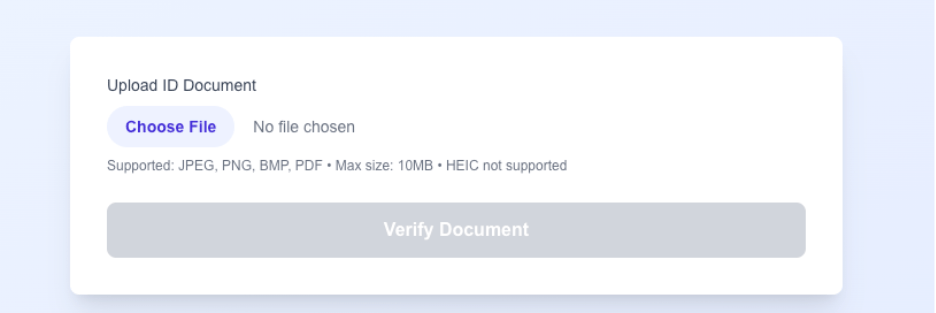
Navigate to localhost:3000, you should see the application running.This is what it should look like:
Congratulations, You have successfully built a document upload and verification flow using GBG GO APIs and document modules.
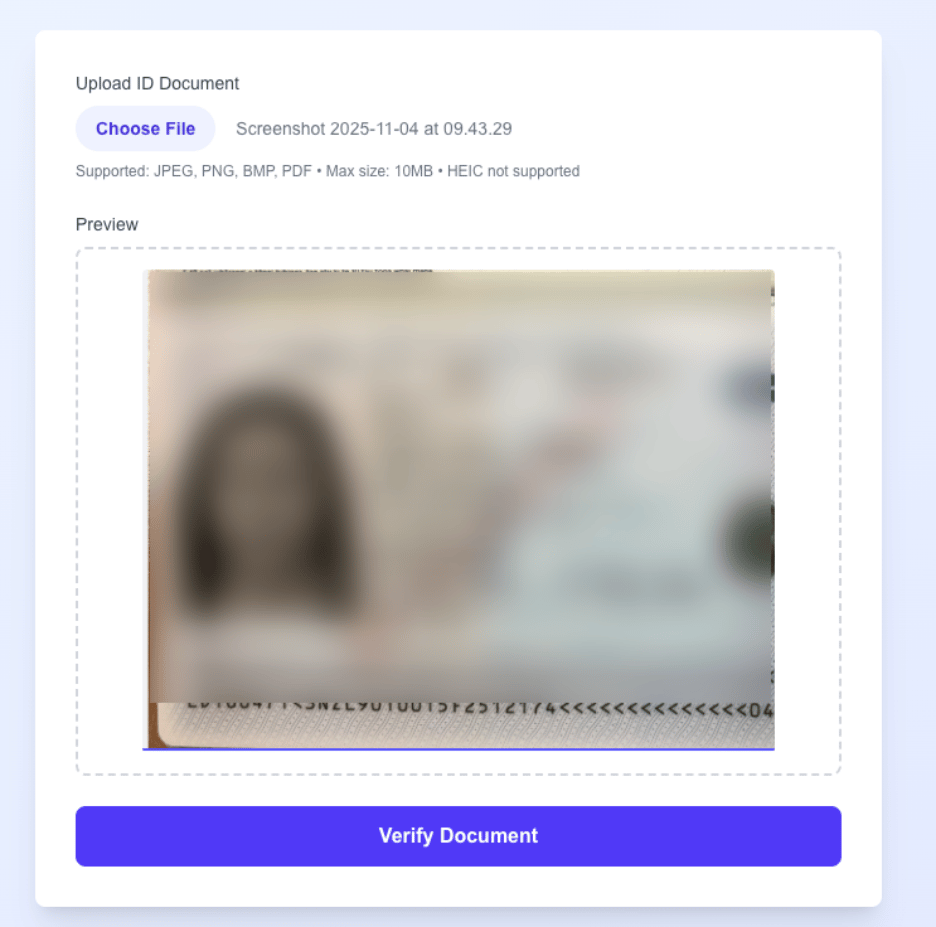
Click Choose File to upload a document, for example, a passport.
Click Verify Document. The verification process starts running. What happens is that the journey starts, and the document modules begin verifying the document in the background.
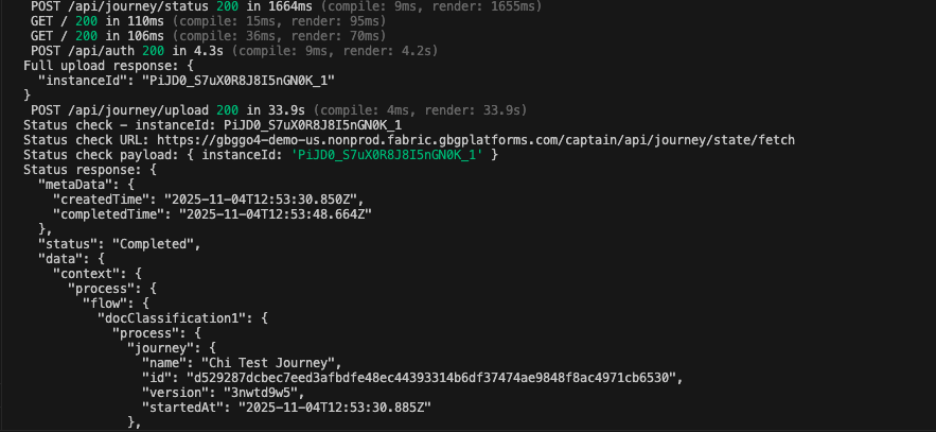
You should get a similar response in your terminal like this:
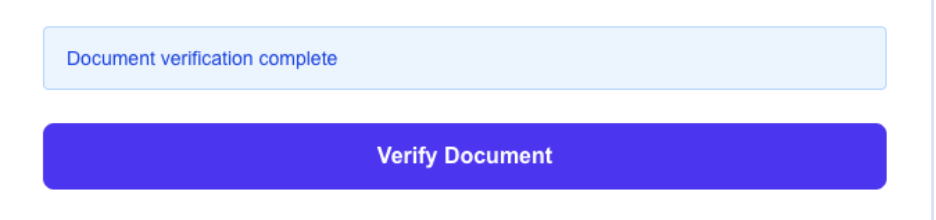
The response contains comprehensive information about the uploaded document. Details include document type and extracted fields such as FirstName, LastName, and BirthDate.After verification is complete, you should see the “Document verification complete” response in the demo app as shown below:
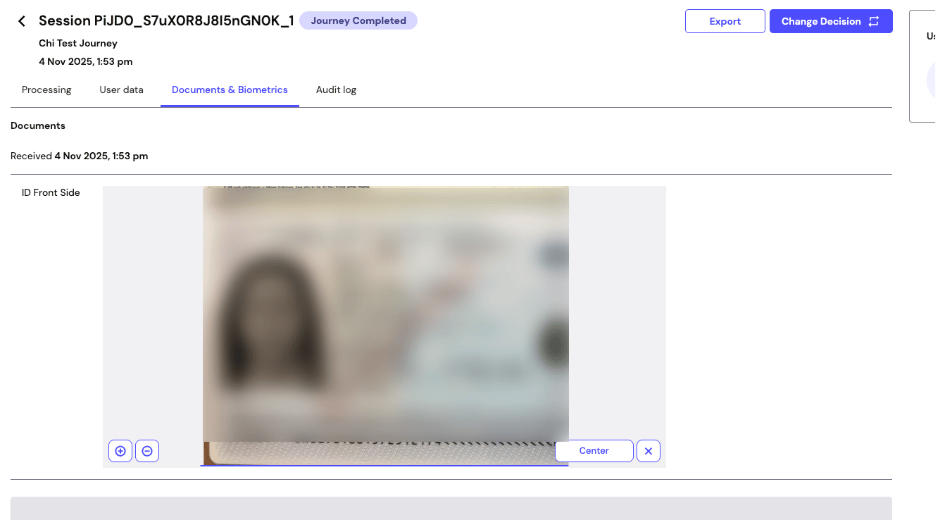
Now, you can investigate the details of this session in the Investigation portal as shown below:
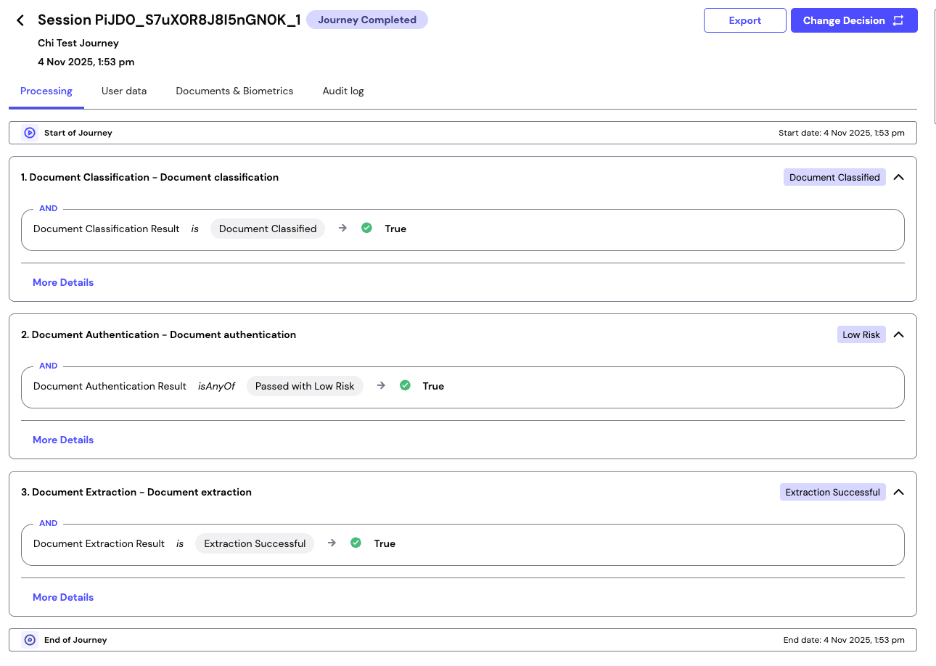
The investigation portal provides a detailed intuitive view of the verification process, including outcomes from each document module.At the top of the page, you’ll notice that the session ID PiJDO... matches the instancedID generated in the terminal.Click the Processing tab to see module outcomes.
These are the outcomes from the document modules added to the journey. You can click into each module to see more details about the verification results. To do this click More Details.To learn more about the common tabs found in More Details, refer to View details of a customer session.