

When to manage authentication methods
You may need to manage your authentication methods when:- You get a new mobile device and need to transfer your authenticator app.
- You want to switch to a different authenticator app.
- You lose access to your current authentication device.
- You lose access to your current authentication device.
- You need to set up MFA for the first time.
Before you begin
Ensure you have:- Access to the GO self-service portal.
- Your new authentication device or app with you, if you’re setting up a new method.
If you have lost access to your authentication device and cannot log in, then contact your administrator or the GBG support team for assistance.
Step 1: Remove an existing authentication method
Follow these steps to remove your current authentication method:- Go to the GO self-service portal and log in with your credentials.
- Navigate to the AUTHENTICATION tab at the top of the page.
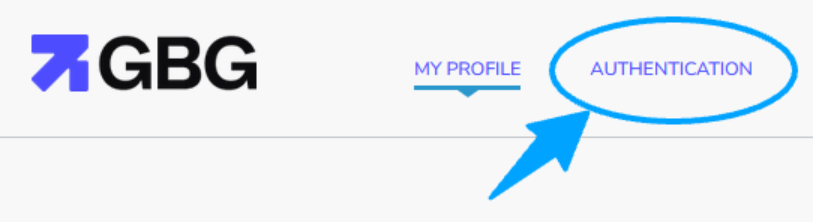
- You will see your connected authenticator app listed under YOUR AUTHENTICATION METHODS.
- Click the three vertical dots next to the default authentication method. This reveals a list of options.
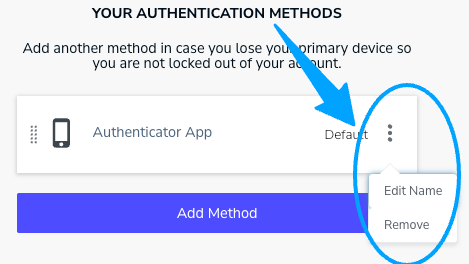
- Click Remove.
- Click OK on the dialog that appears to confirm the removal.
(Optional) Step 2: Add authentication method
Follow these steps to add an authentication method:- Complete steps 1–3 in the Step 1: Remove an existing authentication method section.
- Click Add Method. A dialog appears, prompting you to select a new authentication method.
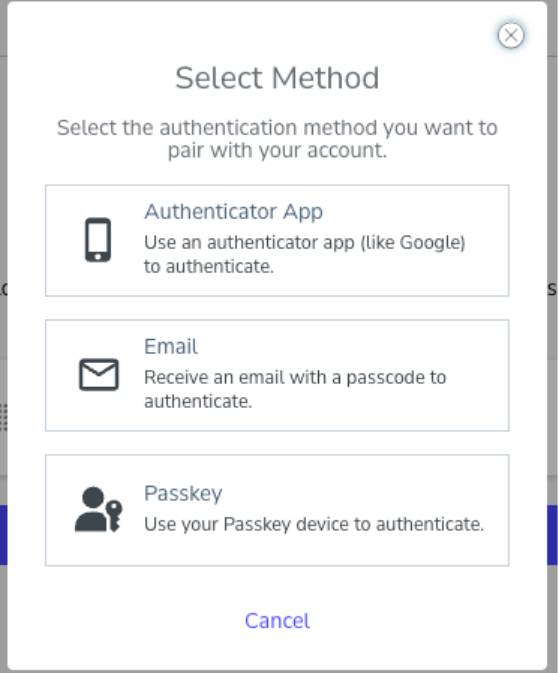
- Select an authentication method from the list. You will be guided through the setup process for your chosen method.