

Monitor a bulk launch
The Bulk launches page of the journey lists every bulk launch created for the journey. The progress and outcomes of each bulk launch are in Investigation.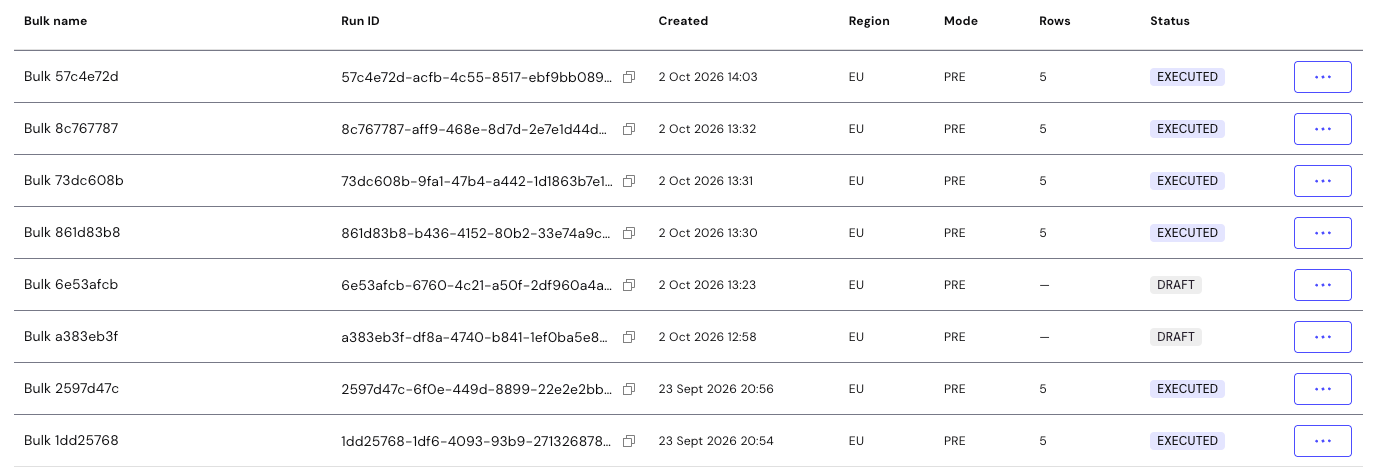
Bulk launches page of a journey
To follow the progress of a bulk launch:
- In the GBG Go platform, open your journey, and then click Bulk launches.
- Find your bulk launch in the table.
- Click ⋯ in the row of the bulk launch, and then click View results. The bulk launch opens on the Bulk launches page in Investigation.
View a bulk launch
The bulk launch page shows the settings of a bulk launch and the file that it runs. To open the page, click the bulk name in the table on the Bulk launches page.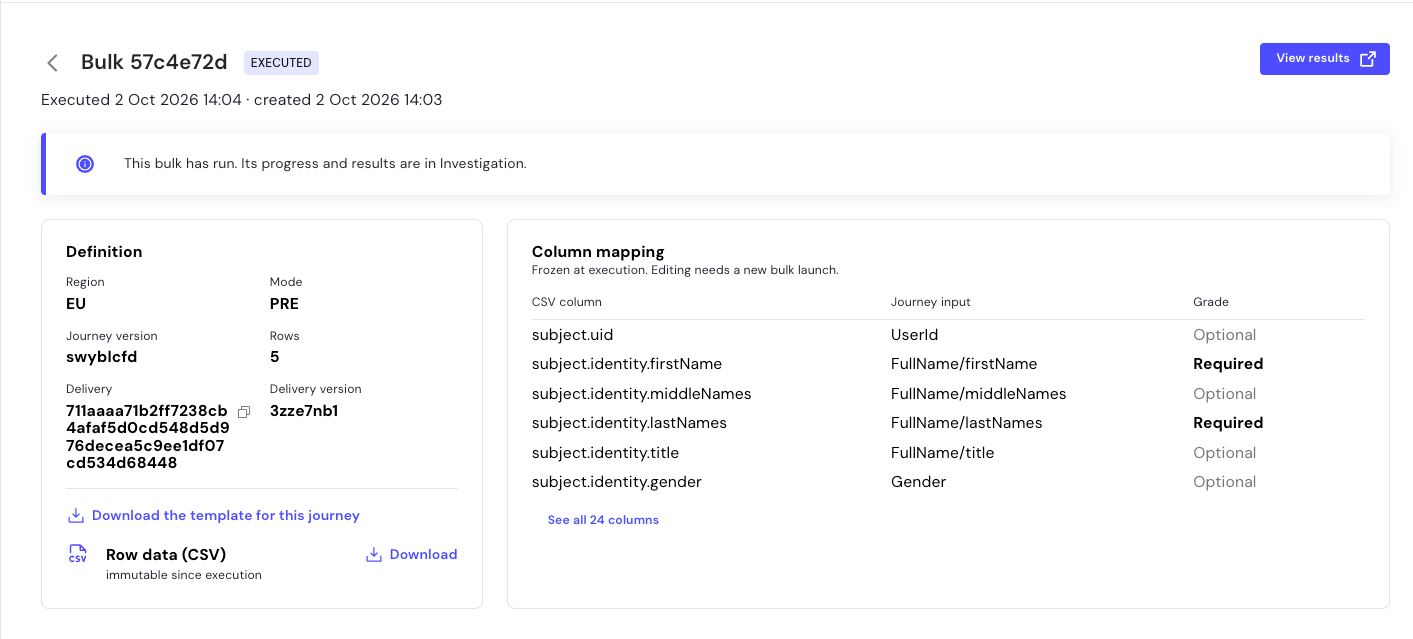
Bulk launch page
The Definition panel contains the following fields:
Under the fields, you can download the template for the journey and the CSV file that the bulk launch uses. To download the CSV file, click Download next to Row data (CSV).
The Column mapping panel shows the first few columns of your CSV file. To see every column, click the See all link, for example See all 24 columns.
You can’t change the CSV file or the column mapping after the bulk launch executes. To make a change, create a new bulk launch.
Stop a bulk launch
You can stop a bulk launch while it’s queued or running. When you stop a bulk launch, the following happens:- Rows that the platform has already sent to a data provider finish as normal.
- The platform skips rows that haven’t started.
Automatic stop after repeated server errors
The platform stops a bulk launch automatically when server errors suggest a wider problem. This protects you from the cost of a run that can’t complete. The platform stops sending rows when both of the following apply:- 20 or more rows have failed with a persistent server error.
- Those rows make up 20% or more of the rows processed so far.
Next steps
- To review the progress and rows of a bulk launch, see View bulk launches.
- To correct rows that failed, fix them in your CSV file and create a new bulk launch.