

Before you begin
You need a GBG Go access token. For details, see Authenticate.Set up a Core SDK
Skip this section if you call the API directly. Install the Core SDK for your language. KYB needs TypeScript Core SDK0.2.0-alpha.0 or later, or Java Core SDK 0.2.0-alpha01 or later. Earlier TypeScript versions, including 0.1.3, drop the entities field that holds the business details.
go client and the accessToken variable:
In these SDK versions, set
serverURL to the host only, without /v2/captain. The SDK adds the path itself. Use the us or au host if your account is in another region.Step 1: Build the journey
The journey for this recipe has one interaction that collects the business details, followed by the Business Insights module.- Create a new journey or open an existing one in the Journey builder.
- In the Browse and add modules panel, click Search all modules and enter
Business Insights. - Select the Business Insights module.
- Choose the Global Business Entity Verification variant.
- Click Add to journey.
- Click the Business Insights module, and then click Settings.
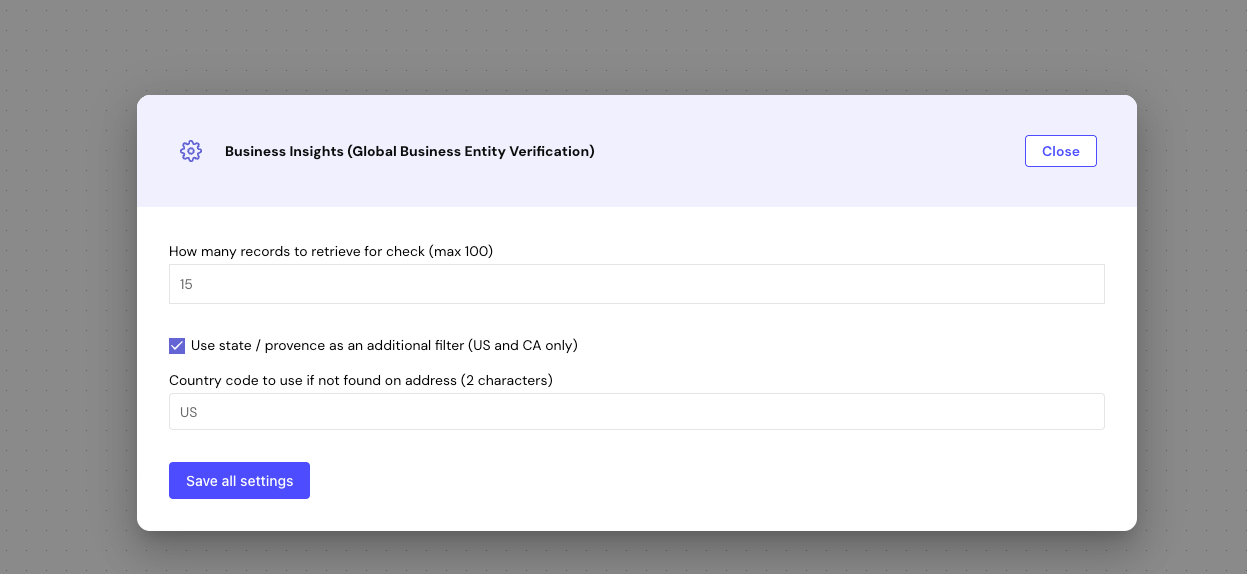
Each Business Insights variant has its own settings. If you choose the US Taxpayer Verification variant, then its settings window shows a different set. For more on module settings, see How to configure module settings in Go.
- Click Save all settings, and then click Close.
- Click Publish to Preview.
- Go to the GBG Go Dashboard and copy the journey’s Resource ID and Version.
Business Match, Business Partial Match, Business Mismatch and Error. To route on them, see Configure outcome decisions.
Step 2: Start the journey
Start a journey with your Resource ID and Version. With the API, send a POST request to/journey/start:
resourceId value with your own Resource ID and Version. In the cURL request, also replace your_access_token with your access token.
Response:
JSON
instanceId. Every following call uses it.
Step 3: Fetch the interaction
Fetch the interaction to find out what the journey needs. With the API, send a POST request to/journey/interaction/fetch:
interactionAccess. In Java, the null argument asks for the full response. The SDK returns the response as one of two shapes, so the code reads interactionId from whichever one arrives.
Response:
JSON
interactionId: Pass this back unchanged when you submit. The submit endpoint rejects the short formsegment1.PrimaryEntity/name: The only required field. It’s the business’s registered name.outstandingGroups: TheEntityAddressgroup hasat-least-onecardinality, so supply at least one address component. Send every component you have, because the module matches each one separately.
PrimaryEntity/registrations, PrimaryEntity/phones and EntityAddress/location. To get the full JSON schema for every field, call /journey/schema/fetch with your resourceId.
Step 4: Submit the business details
The journey refers to the business as thePrimaryEntity and EntityAddress domain elements. In the request body, they map to an entry in context.subject.entities:
Submit the business details, and name both domain elements in
participants. With the API, send a POST request to /journey/interaction/submit:
JSON
Step 5: Poll for the result
Fetch the journey state every second or two whilestatus is InProgress. With the API, send a POST request to /journey/state/fetch:
context() on the state is a map, so the outcome helper reads the result by key.
Poll the journey state, not the interaction. Straight after a submit,
/journey/interaction/fetch can still return the business details interaction while the module runs.JSON
status is Completed, read the Business Insights entry in context.process.steps:
result.outcome: The module’s outcome. Route on this value in the Journey builder or in your own code.result.advice: The individual checks behind the outcome. For what each value means, see Business Insights.result.note.customAttributes.businessNameMatches: The registry records that matched the business name, including the source registry and company number.
Read the outcome
The outcome depends onbusinessMatch and addressMatch in the advice. These three submissions ran against the same journey:
A name match alone gives
Business Partial Match. To return Business Match, the address must also match fully or partly.
Optional: Send the business details at start
If you already hold the business details, then put them incontext.subject when you start the journey. The journey skips the business details interaction and runs the module straight away.
Troubleshooting
These are the problems seen most often when submitting business details.Submit returns success but the journey doesn't move on
Submit returns success but the journey doesn't move on
The submit request doesn’t include a
participants array. GBG Go returns "status": "success", but the next fetch still lists PrimaryEntity/name as outstanding. The state endpoint shows an empty subject.Add participants with PrimaryEntity and EntityAddress, as in Step 4, and submit again.Submit returns 400
Submit returns 400
GBG Go validates the submitted business details against the journey schema and returns
400 with a 4002 error code. The problem field names the field at fault.The Core SDKs throw an ErrorResponse with this body. Read it from body in TypeScript, or with bodyAsString() in Java.A failed submit leaves every field outstanding, so you can correct the request and submit it again.