

Demo
Watch this demo to see how quickly you can create and launch a low-code hosted journey using the GBG Go Journey builder and APIs.Before you begin
Ensure you have the following:- A GBG Go account. If you do not have an account, then contact your GBG account manager.
- You have received a welcome email confirming your account creation.
- The necessary modules and variants are enabled in your contract.
- An API client (Client ID and Client secret) created in the Account management portal. See Manage API clients for instructions.
- A published journey with the journey resource ID and version number copied from the GBG Go dashboard.
The login credentials for your GBG Go dashboard are different from your API client credentials. You create API clients yourself in the Account management portal. API client credentials are used for programmatic access to the GBG Go APIs, while the dashboard login is for the web interface.
Step 1: Log in to GBG Go
This section guides you through accessing GBG Go for the first time. If you are an existing customer, then you do not need to go through these steps.- Navigate to the GBG Go sign-in page, and then click Customer Sign In.
- Enter your email address, and then click Log In.
- Click Forgot your password? GBG Go sends a recovery code to your email.
- Enter the recovery code and create your new password.
- Click Change password to complete the setup.
- Log in with your email and new password.
Step 2: Create a hosted journey
This section walks you through creating a hosted journey.- Click on the Create a new journey list.
- Select API + hosted (latest). This opens the Journey builder, allowing you to design hosted journey workflows.
- Click the edit icon on the journey name at the top of the editor.
- Enter a meaningful name, for example, “Age Verification - New Customers.”
- Click outside the name field to save it.
Step 3: Add modules
Modules define the verification steps in your journey. Each module performs a specific function, such as document verification, identity checks, or biometric authentication.- Go to Browse and add modules in the right sidebar.
- Use the search bar to find a module by name, for example, Age Verification.
- Click the module that you want to add. For this quickstart, select the Age Verification module. This opens the module configuration panel.
- Click Add to journey to insert it into the flow. To add more modules, click the ”+” icon between existing nodes in the journey flow.
- Click the module inside the Journey builder. This opens the configuration panel where you can customize the module’s settings, such as selecting a variant or setting specific parameters.
- Click Configure outcomes to define what happens when a user passes or fails the verification step.
- Click Close to apply your configuration.
For a hosted journey, the platform analyses the modules you add and automatically generates the appropriate hosted pages to collect the required information from end users.
Step 4: Publish to preview/sandbox environment
Click Publish to Preview in the Journey builder. GBG Go displays a confirmation message. Next, click Dashboard to see:- Environment (Preview)
- Version number
- Resource ID
- Last published
- Actions list
Resource ID and journey version number to start the journey through the API and test the end-user experience.
Step 5: Authenticate and obtain an access token
Use your API client’s Client ID and Client secret to authenticate. If you haven’t created an API client yet, see Manage API clients. Make a POST request to obtain your Bearer token:cURL
JSON
If you run into a credentials error when making a token cURL request, it’s most likely your client ID or client secret aren’t correct. Check the values in the Account management portal, or regenerate the client secret if needed. See Manage API clients.
Step 6: Start Hosted journey using API
Send a POST request to the/journey/start endpoint with the resource ID of the published hosted journey. Include "delivery": "page" in the config object to indicate that this is a hosted journey.
For API Integration journeys, this field is not required as it defaults to API-first delivery. Or you can set the field to “api” to explicitly start an API-first journey.
cURL
JSON
Step 7: Direct end users to the hosted page
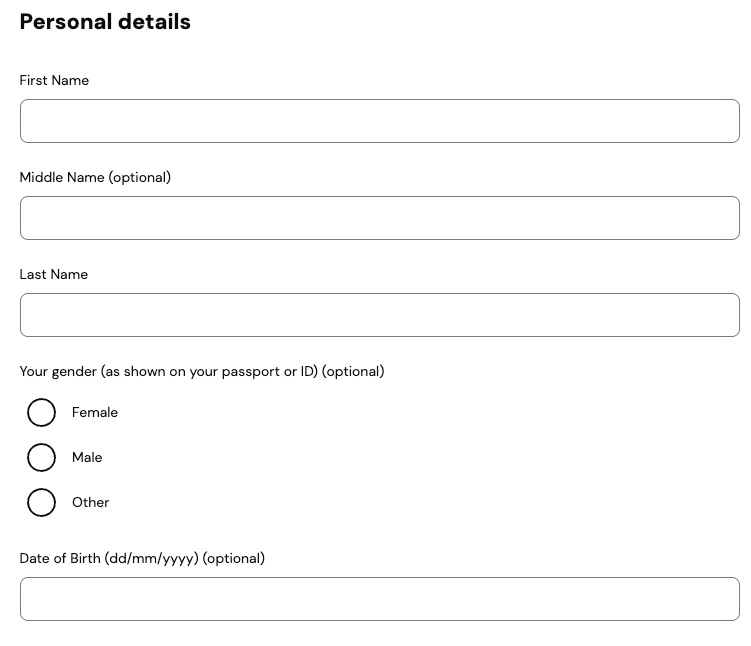
You can use theinstanceUrl in one of the following ways:
- Redirect: Redirect end users from your application to the URL.
- Share: Send the URL directly to end users via email, SMS, or other communication channels.
instanceUrl in a browser:
Step 8: Fetch journey status
After starting a journey, you can poll for its status by sending a request to the/journey/state/fetch endpoint. For hosted journeys, your backend only needs to fetch journey state to detect when the journey completes. The hosted pages handle the interaction loop automatically.
Sample request:
BASH
JSON
status field, take appropriate actions:
Next steps
- To learn more about hosted journeys, see Hosted journeys overview.
- To explore API capabilities, see the API reference documentation.
- To understand the full API integration flow, see API usage guides.
- To review journey session results and submitted data, see Investigate overview.