

You can view PEP and Sanctions screening results in the Investigation Portal. For more information, refer to the View details of a journey session documentation.
Module variants
The PEPs and Sanctions module has various variants that determine the scope of compliance checks performed on your customers. These include:- UK Instance
- UK Instance (with OGM)
- UK Instance (with Adverse Media and OGM)
- PEPs and Sanctions Standard
- PEPs and Sanctions Standard with Adverse Media
- PEPs and Sanctions Standard OGM Push
Capabilities and allowed values
Each PEPs and Sanctions variant supports different capabilities that determine which screening checks the module performs. The capabilities include PEPs and sanctions results, sanctions hit type, PEPs hit type, sent to OGM, and adverse media hit type. For a full description of each capability and its allowed values, refer to PEPs and Sanctions.Example: Testing the PEPs and Sanctions module using Go API
This section walks you through testing the PEPs and Sanctions module.Step 1: Add the module to your journey
To test the PEPs and Sanctions module, you first need to add it to a customer journey.- Create a new journey or open an existing one in the journey builder.
- Click Browse and add modules.
- Search for PEPs and Sanctions or navigate to the Compliance Screening category.
- Select the PEPs and Sanctions module.
- Choose a variant.
These steps use the UK Instance (with Adverse Media and OGM) variant for testing.
- Click Add to journey.
- Click Configure outcomes.
- Rules:
- Match: PEPs and Sanctions Results + is any of + PEPs and Sanctions Hit. This rule means that if the PEPs and Sanctions check results in a hit, then there is a match.
- No Match: PEPs and Sanctions Results + is any of + PEPs and Sanctions No Hit. This rule means that if the PEPs and Sanctions check results in a no hit, then there is no match.
- Click Close.
(Optional) Step 2: Configure PEPs and Sanctions module settings
Module settings control which records the screening returns and how strictly the module matches an end-user against them. The default settings suit most use cases, so configure these settings only if you need to narrow the screening scope or adjust the match tolerance. To configure the module settings:- Open your journey in the journey builder and click the PEPs and Sanctions module.
- Click Settings. The module settings modal appears.
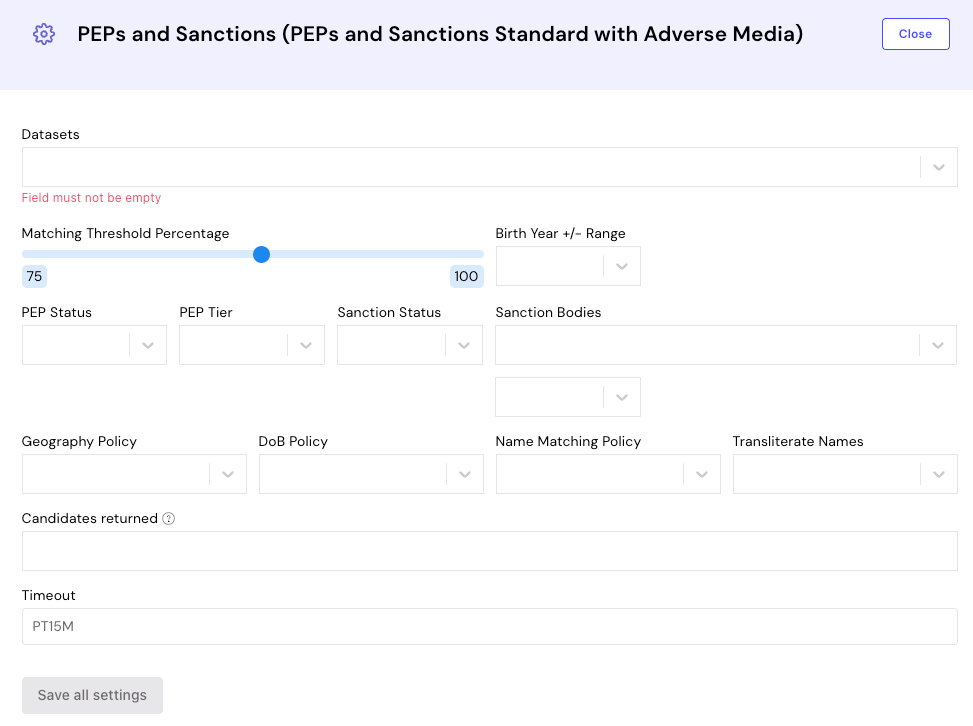
- Modify the available settings based on your requirements. For a description of each field, refer to the table below.
- Click Save all settings.
Module settings descriptions
Module settings descriptions
| Field | Description |
|---|---|
| Datasets | Which type of search to run. The supplier holds several datasets, such as PEP, sanctions, and adverse media, and this field determines which of them the end-user’s data is searched against. |
| Matching Threshold Percentage | Filters the results returned by the supplier. The supplier scores each result for confidence, based on the data supplied. Results score higher than the threshold return to GBG Go. Raise the threshold to return fewer, closer matches. |
| Birth Year +/- Range | How much leeway to allow on the end-user’s year of birth when matching against a record. For example, if the end-user has a year of birth of 2000 and you select Within 1 Year, records with a year of birth of 1999 or 2001 still match. Values are Exact Match, Same Year, and Within 1 Year through to Within 5 Years. |
| PEP Status | Which PEP statuses to return. Current means the end-user is a PEP now. Former means the end-user held a political role but has been out of it for a set period. Linked, also known as PEP by Association, means the end-user has a connection to a PEP, usually direct family such as a spouse, but isn’t a PEP themselves. |
| PEP Tier | Which PEP tiers to return. Tiers run from Tier 1 to Tier 3, with Tier 1 covering the most senior positions, such as presidents, ministers, and prime ministers. |
| Sanction Status | Whether to return end-users who are currently sanctioned, were recently sanctioned, or both. |
| Sanction Bodies | The sanction-issuing bodies to screen against, for example, the United Kingdom Home Office or the United States Department of State. Use with the adjacent include or exclude field. |
| Sanction bodies include or exclude | How to apply the Sanction Bodies list. Include returns results only from the bodies you list. Exclude returns results from all bodies except the ones you list. |
| Geography Policy | The geography policy to apply when matching. |
| DoB Policy | The date of birth policy to apply when matching. |
| Name Matching Policy | The name matching policy to apply when matching. |
| Transliterate Names | Whether to transliterate names when matching. |
| Candidates returned | The maximum number of candidate matches to return. |
| Timeout | How long the module waits for a response from the supplier, as a duration, for example, PT15M. |
Step 3: Publish the journey
After adding and configuring the module:- Click Publish to Preview.
- Go to the GBG Go Dashboard and copy your Resource ID and Version for testing.
Step 4: Start journey with test data
Use the Start journey endpoint to trigger the PEPs and Sanctions screening with test customer data. Send a POST request to/journey/start:
Request body:
cURL
curl --request POST \
  --url https://eu.platform.go.gbgplc.com/captain/api/journey/start \
  --header 'Authorization: Bearer your_access_token' \
  --header 'Content-Type: application/json' \
  --data '{
    "resourceId": "092a0947e99aa3e955344178a3d010413769e0acca6d97728dd758e04b449566@7upcgqlz",
    "context": {
      "subject": {
        "identity": {
          "firstName": "john",
          "middleNames": ["michael"],
          "lastNames": ["doe"],
          "dateOfBirth": "1961-06-01"
        }
      },
      "documents": [],
      "biometrics": []
    }
  }'
your_access_token with a valid access token. Replace the resourceId value with your journey’s Resource ID and Version.
The request requires the firstName and lastNames values. Include additional data, for example, the dateOfBirth value, to get more accurate screening results.
What happens:
- The API creates a journey instance ID and processes the customer data through the PEPs and Sanctions module.
- You receive an
instanceIdin the response, which you will use to retrieve the results.
JSON
{
    "instanceId": "PiLnDpbppCoR8IQ1AoJ4YJj7"
}
Step 5: Retrieve the screening results
Use the Fetch journey state endpoint to check if the PEPs and Sanctions screening has completed. Send a POST request to/journey/state/fetch:
Request body:
cURL
curl --request POST \
  --url https://eu.platform.go.gbgplc.com/captain/api/journey/state/fetch \
  --header 'Authorization: Bearer your_access_token' \
  --header 'Content-Type: application/json' \
  --data '{
    "instanceId": "PiIbYsgiHp4R8JPz2vU5Y9l4"
  }'
- A list of tasks that the journey executed, including the PEPs and Sanctions screening task.
- Each task includes details about the screening outcome.
JSON
{
"metaData": {
"createdTime": "2025-10-15T15:17:07.553Z",
"completedTime": "2025-10-15T15:17:23.619Z"
},
"status": "Completed",
"data": {
"context": {
"process": {
"flow": {
"peps_and_sanctions_adverseMedia_ogm": {
"process": {
"journey": {
"name": "PEPS",
"id": "20848067f46658d02c0ce53501dcd72a25a6ecc0577b1f9259b6bd0a7fd8371a",
"version": "5e8puio8",
"startedAt": "2025-10-15T15:17:07.568Z"
},
"instance": {
"id": "PiIDhX14qdoR8J6y6vybL8Xk",
"instanceId": "PRC-03857d78-a9da-11f0-9eb2-eafc9b2fc5e4"
}
},
"subject": {
"identity": {
"firstName": "John",
"middleNames": [
"Michael"
],
"lastNames": [
"Doe"
],
"dateOfBirth": "1985-03-15"
},
"uid": null
},
"result": {
"advice": {
"decision": "hit",
"sanctions_hit": "Full name and DOB matched",
"pep_hit": "Not Available",
"adverse_media_hit": "Match found for name",
"sent_to_ogm": true,
"sanction_candidate_score": 100,
"customDecision": null
},
"note": {
"pep_match_details": {
"fullname": "John Michael Doe",
"aliases": [
"John M. Doe",
"J. Michael Doe",
"Johnny Doe"
],
"addresses": [
{
"lines": [""],
"locality": "Chicago",
"country": "",
"superAdministrativeArea": "Illinois"
}
],
"dates": [
{
"type": "Birth",
"date": "1985-03-15"
}
]
},
"sanctions_match_details": [
{
"fullName": "John Michael Doe",
"bodies": [
"Monaco Minister of State",
"United Kingdom Foreign, Commonwealth & Development Office",
"French Ministry of Economy and Finance, DG Treasury",
"European Union Council (EU)",
"Office of Foreign Assets Control (OFAC)",
"Swiss State Secretariat for Economic Affairs",
"United States Department of State",
"New Zealand Ministry of Foreign Affairs & Trade",
"Australian Department of Foreign Affairs and Trade",
"Ukraine National Security and Defence Council",
"Canadian Government Sanctions",
"Her Majesty's Treasury/Office of Financial Sanction Implementation (HMT/OFSI)",
"Japan Ministry of Finance"
],
"aliases": [
"John M. Doe",
"J. Michael Doe",
"John Doe",
"Johnny Doe",
"J.M. Doe",
"Jonathan Michael Doe",
"Jon Michael Doe",
"Johnathan Doe"
],
"addresses": [
{
"lines": [
""
],
"locality": "Chicago",
"country": "",
"superAdministrativeArea": ""
}
],
"dates": [
{
"type": "Birth",
"date": "1985-03-15"
},
{
"type": "Death",
"date": "2024-11-20"
}
]
}
],
"adverse_media_match_details": {
"sanctionsType": "NM",
"subjectName": "John Michael Doe",
"inputName": "John Michael Doe",
"processedDate": "2025-10-15 16:17:13",
"details": [
{
"sourceID": "9349",
"subjectMatched": "John Michael Doe",
"text": "Dec 19, 2020, 3:25 AM The 20 biggest financial fraud cases of 2020 2020 was another roller coaster year in finance, and for no one more than financial executive John Michael Doe and some of his closest business partners",
"score": "97",
"category": "ALLNM",
"url": "https://www.businessinsider.com.au/the-biggest-fraud-cases-of-2020-investigation-2020-12",
"textHeading": "Dec 19, 2020, 3:25 AM The 20 biggest financial fraud cases of 2020 2020 was another roller coaster",
"newsOutlet": "businessinsider.com"
},
{
"sourceID": "11226",
"subjectMatched": "John Michael Doe",
"text": "THE US has slapped new sanctions on executives in retaliation to their alleged roles in the 2019 financial schemes. The sanctions include target John Michael Doe, who has been tied ",
"score": "97",
"category": "ALLNM",
"url": "https://www.thesun.ie/news/2313583/us-slaps-fresh-sanctions-on-top-executives-including-financial-mastermind/",
"textHeading": "THE US has slapped new sanctions on executives in retaliation to their alleged roles in the 2019 fi",
"newsOutlet": "thesun.ie"
},
{
"sourceID": "12623",
"subjectMatched": "John Michael Doe",
"text": "THE US has slapped new sanctions on executives in retaliation to their alleged roles in the 2019 financial fraud campaign. The sanctions include target John Michael Doe, who has been tied ",
"score": "97",
"category": "ALLNM",
"url": "https://www.thescottishsun.co.uk/news/2368436/us-slaps-fresh-sanctions-on-top-executives-including-fraud-mastermind/",
"textHeading": "THE US has slapped new sanctions on executives in retaliation to their alleged roles in the 2019 fi",
"newsOutlet": "thescottishsun.co"
},
{
"sourceID": "12623",
"subjectMatched": "John Michael Doe",
"text": "THE US has slapped new sanctions on business executives in retaliation to their alleged roles in the 2019 schemes. The sanctions include target John Michael Doe, who has been tied ",
"score": "97",
"category": "ALLNM",
"url": "https://www.thescottishsun.co.uk/news/2368436/us-slaps-fresh-sanctions-on-executives-fraud-schemes/",
"textHeading": "THE US has slapped new sanctions on business executives in retaliation to their alleged roles in the",
"newsOutlet": "thescottishsun.co"
},
{
"sourceID": "1364",
"subjectMatched": "John Michael Doe",
"text": "News Oct. 20 2020 - 19:10 By Reuters Flickr The U.S. government on Friday charged a business executive with playing a key financial role in a scheme to conduct \"financial fraud\" against",
"score": "94",
"category": "ALLNM",
"url": "https://themoscowtimes.com/news/executive-charged-with-conspiring-to-commit-fraud-63253",
"textHeading": "News Oct. 20 2020 - 19:10 By Reuters Flickr The U.S. government on Friday charged a business executive",
"newsOutlet": "themoscowtimes.com"
},
{
"sourceID": "156",
"subjectMatched": "John Michael Doe",
"text": "US government charged business executive for attempting to commit financial fraud in the 2019 schemes. (Representational Image) The US government on Friday charged an executive with playing a key ",
"score": "94",
"category": "ALLNM",
"url": "https://indianexpress.com/article/world/executive-charged-with-conspiring-in-financial-schemes-5410374/",
"textHeading": "US government charged business executive for attempting to commit financial fraud in the 2019 schemes.",
"newsOutlet": "indianexpress.com"
},
{
"sourceID": "156",
"subjectMatched": "John Michael Doe",
"text": "White House pledges to step up financial oversight ahead of new regulations The US government on Friday charged an executive with playing a key financial role in schemes to conduct fraud",
"score": "94",
"category": "ALLNM",
"url": "https://indianexpress.com/article/world/executive-charged-with-conspiring-in-fraud-schemes-5410602/",
"textHeading": "White House pledges to step up financial oversight ahead of new regulations The US government on Friday",
"newsOutlet": "indianexpress.com"
},
{
"sourceID": "9834",
"subjectMatched": "John Michael Doe",
"text": "The case against the executive was unsealed on the same day that US law enforcement and intelligence agencies issued a warning about attempts by various entities to interfere with financial markets",
"score": "94",
"category": "ALLNM",
"url": "https://www.malaymail.com/news/world/2020/10/20/executive-charged-with-conspiring-in-financial-fraud/1684815",
"textHeading": "The case against the executive was unsealed on the same day that US law enforcement and intelligence",
"newsOutlet": "malaymail.com"
},
{
"sourceID": "9219",
"subjectMatched": "John Michael Doe",
"text": "October 2020 Executive charged over financial fraud The US government has charged a business executive with playing a key financial role in schemes to conduct \"financial fraud\" against ",
"score": "94",
"category": "ALLNM",
"url": "https://www.odt.co.nz/news/world/executive-charged-over-fraud",
"textHeading": "October 2020 Executive charged over financial fraud The US government has charged a business executive",
"newsOutlet": "odt.co"
},
{
"sourceID": "1400",
"subjectMatched": "John Michael Doe",
"text": "Executive charged with conspiring to commit financial fraud World Saturday, 20 Oct 2020 6:31 PM MYT by nathan layne NEW YORK (Reuters) - The U.S. government on Friday charged a business executive",
"score": "94",
"category": "ALLNM",
"url": "https://www.thestar.com.my/news/world/2020/10/20/business-executive-conspired-in-fraud-justice-department/",
"textHeading": "Executive charged with conspiring to commit financial fraud World Saturday, 20 Oct 2020",
"newsOutlet": "thestar.com"
},
{
"sourceID": "3733",
"subjectMatched": "John Michael Doe",
"text": "Executive charged with conspiring to commit financial fraud The U.S. government on Friday charged a business executive with playing a key financial role in schemes to conduct fraud",
"score": "94",
"category": "ALLNM",
"url": "https://in-cyprus.com/news/international/executive-charged-with-conspiring-in-fraud/",
"textHeading": "Executive charged with conspiring to commit financial fraud The U.S. government on Friday",
"newsOutlet": "in-cyprus.com"
},
{
"sourceID": "167",
"subjectMatched": "John Michael Doe",
"text": "The U.S. government on Friday charged a business executive with playing a key financial role in schemes to conduct "financial fraud". John Michael Doe, 44, ",
"score": "94",
"category": "ALLNM",
"url": "https://www.thehindu.com/news/international/executive-charged-in-first-2019-fraud-case/article25269657.ece",
"textHeading": "The U.S. government on Friday charged a business executive with playing a key financial role in schemes",
"newsOutlet": "thehindu.com"
},
{
"sourceID": "1396",
"subjectMatched": "John Michael Doe",
"text": "U.S. charges executive with 'financial fraud' conspiracy 10:10 pm, October 20, 2020 10:10 pm, October 20, 2020 Reuters NEW YORK (Reuters) — The U.S. government on Friday charged a business executive",
"score": "94",
"category": "ALLNM",
"url": "http://the-japan-news.com/news/article/0004908329",
"textHeading": "U.S. charges executive with 'financial fraud' conspiracy 10:10 pm, October 20, 2020",
"newsOutlet": "the-japan-news.com"
},
{
"sourceID": "11348",
"subjectMatched": "John Michael Doe",
"text": "For years, it was shrouded in secrecy, then infamy, and after claims of a \"scandal\" in Chicago in June, questions about the notorious business group and the intentions of its leader John Michael Doe —",
"score": "86",
"category": "ALLNM",
"url": "https://www.cbsnews.com/colorado/news/business-group-who-is-john-doe-executive-private-company/",
"textHeading": "For years, it was shrouded in secrecy, then infamy, and after claims of a \"scandal\" in Chicago",
"newsOutlet": "cbsnews.com"
},
{
"sourceID": "12542",
"subjectMatched": "John Michael Doe",
"text": "Global Markets See Upside in Corporate Chaos MATTHEW LUXMOORE 3 min read 24 Jun 2023, 10:25 pm IST Residents walk in the city of Chicago on June 13, 2023. The head of the business",
"score": "86",
"category": "ALLNM",
"url": "https://www.livemint.com/news/world/markets-see-upside-in-corporate-chaos-11687625295800.html",
"textHeading": "Global Markets See Upside in Corporate Chaos MATTHEW LUXMOORE 3 min read 24 Jun 2023, 10:25",
"newsOutlet": "livemint.com"
},
{
"sourceID": "12542",
"subjectMatched": "John Michael Doe",
"text": "Corporate board is 'deceiving' investors: Business chief amid scandal threats John Michael Doe publicly expressed his disappointment over the management, whom he accused",
"score": "86",
"category": "ALLNM",
"url": "https://www.livemint.com/news/world/corporate-board-is-deceiving-investors-business-chief-amid-scandal-11683623340036.html",
"textHeading": "Corporate board is 'deceiving' investors: Business chief amid scandal threats John Michael",
"newsOutlet": "livemint.com"
},
{
"sourceID": "12542",
"subjectMatched": "John Michael Doe",
"text": "Corporate crisis: Regulators pledge support for investigation Paris would also focus its efforts 'in supporting investigation capacities in order to protect investors",
"score": "86",
"category": "ALLNM",
"url": "https://www.livemint.com/news/world/corporate-crisis-regulators-pledge-support-for-investigation-11684109112365.html",
"textHeading": "Corporate crisis: Regulators pledge support for investigation Paris would also focus its efforts",
"newsOutlet": "livemint.com"
},
{
"sourceID": "12542",
"subjectMatched": "John Michael Doe",
"text": "Business chief vows legal action against allegations: What we know so far John Michael Doe, head of the business group, has threatened legal action, accusing",
"score": "86",
"category": "ALLNM",
"url": "https://www.livemint.com/news/world/business-chief-vows-legal-action-what-we-know-so-far-11687571383287.html",
"textHeading": "Business chief vows legal action against allegations: What we know so far John Michael Doe",
"newsOutlet": "livemint.com"
},
{
"sourceID": "12542",
"subjectMatched": "John Michael Doe",
"text": "Who is John Michael Doe, the business executive facing allegations? Anti-fraud measures are being taken in Chicago following claims by the business executive, John Michael Doe, that ",
"score": "86",
"category": "ALLNM",
"url": "https://www.livemint.com/news/world/who-is-john-michael-doe-business-executive-facing-allegations-11687576131808.html",
"textHeading": "Who is John Michael Doe, the business executive facing allegations? Anti-fraud measures are being",
"newsOutlet": "livemint.com"
},
{
"sourceID": "12542",
"subjectMatched": "John Michael Doe",
"text": "Regulators call for 'transparency', say 'will not allow..' Regulators have warned against corporate misconduct and called for transparency, while investigating the allegations involving the business executive",
"score": "86",
"category": "ALLNM",
"url": "https://www.livemint.com/news/world/regulators-call-for-transparency-will-not-allow-11687592403221.html",
"textHeading": "Regulators call for 'transparency', say 'will not allow..' Regulators have warned against corporate",
"newsOutlet": "livemint.com"
}
],
"pageNumber": 1,
"totalItems": 100,
"totalPages": 5
}
},
"status": "complete",
"outcome": "MATCH"
}
}
},
"journey": {
"name": "PEPS",
"id": "20848067f46658d02c0ce53501dcd72a25a6ecc0577b1f9259b6bd0a7fd8371a",
"version": "5e8puio8",
"startedAt": "2025-10-15T15:17:07.568Z",
"endedAt": "2025-10-15T15:17:23.497Z",
"durationMilliSec": 15929
},
"instance": {
"id": "PiIDhX14qdoR8J6y6vybL8Xk",
"instanceId": "PRC-03857d78-a9da-11f0-9eb2-eafc9b2fc5e4"
}
},
"subject": {
"identity": {
"firstName": "John",
"middleNames": [
"Michael"
],
"lastNames": [
"Doe"
],
"dateOfBirth": "1985-03-15"
}
},
"result": {
"status": "complete",
"error": []
}
}
},
"instanceId": "PiIDhX14qdoR8J6y6vybL8Xk"
}
If the status is Completed, the PEPs and Sanctions screening has finished processing.