

Before you begin
Make sure that:- Your user role has permission to export journey sessions and view journey session details.
- Session export is enabled for your organisation.
Export sessions
To export multiple journey sessions:- Log in to your GBG Go account.
- Click Investigation. The Investigation portal opens.
- Click Add Filter.
- Select a filter option, for example, Name. For the full list of filter options, see Filter sessions.
- Click Apply Filter. The session list shows only the sessions that match your filter criteria.
- Click Export in the top-right corner of the page. The Export dialog appears. The dialog shows the number of sessions to export, the estimated file size, and the filters that you applied.
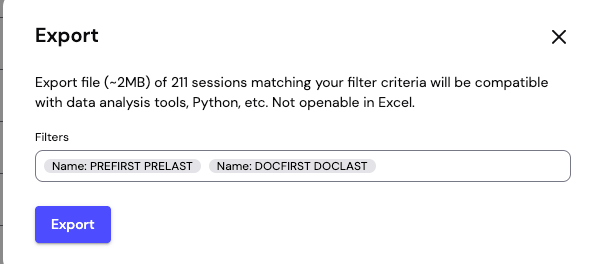
- Click Export. A progress banner appears at the top of the portal.
If your export contains more than 20,000 sessions, then it’s split into multiple files, for example,
sessions_export_part1.jsonl and sessions_export_part2.jsonl.Export file format
To see the structure of an export file, download the sample file below. It contains 42 journey sessions from the preview environment and uses test data only. Download sample exportWork with .jsonl files
You can inspect an exported file from the terminal on macOS or Linux:Bash
Python
FAQ
How is personal data handled in the export?
How is personal data handled in the export?
The export follows the data masking rules that apply to your user role. Fields that are masked in the Investigation portal stay masked in the exported file.
Can I export sessions as a CSV file?
Can I export sessions as a CSV file?
No. Journey session data is nested, for example, a session can include several document scans and checks. The .jsonl format keeps the full structure of each session without flattening or losing data.
What happens if my internet connection drops during an export?
What happens if my internet connection drops during an export?
The progress banner displays an error message with a Retry option. If you close the banner, then you can restart the export with the same filters.