> ## Documentation Index
> Fetch the complete documentation index at: https://docs.go.gbgplc.com/llms.txt
> Use this file to discover all available pages before exploring further.
# Log in to GBG GO
> Log in to GBG GO for the first time, set your password, and configure multi-factor authentication for your account.
To access GBG GO, you need a user account created by your organisation. When your account is created, you will receive a temporary password from your administrator.
## First-time login
The first time you log in, you sign in with your temporary password and are then prompted to set a password of your own.
Follow these steps to log in for the first time:
1. Go to the GBG GO sign-in page. Click on **Customer Sign In**.
2. Enter your email address and temporary password, then click **Log in**.
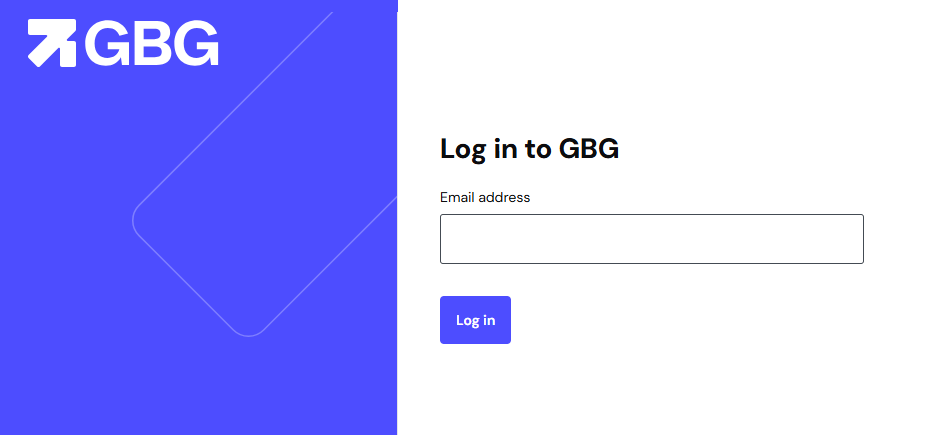 3. On the password reset screen, enter and confirm your new password.
4. Click **Change password** to complete the setup.
5. Sign in with your email and new password.
## Setting up multi-factor authentication (MFA)
Once you set your password and log in, GBG prompts you to set up multi-factor authentication. To set up multi-factor authentication, follow the steps below:
1. Click **Setup** and then select any of the available authentication options:
* **Voice:** Receive a phone call with a passcode to authenticate.
* **Email:** Receive an email with a passcode to authenticate.
* **Authenticator App:** Use an authenticator app such as **Google Authenticator** to authenticate.
2. Log in to your account again once you’ve authenticated.
## Logging in after the first time
Once your password has been updated, follow these steps to log in:
1. Go to GBG GO sign-in page.
2. Enter your email address.
3. Enter your password and click **Log in**.
4. If your credentials are correct, you will be directed to the GBG GO dashboard.
## Reset your password
If you forget your password, then you can reset it from the login page.
1. Click **Forgot your password?** on the login screen. You are taken to the New password page, and a GBG password reset email containing a reset code is sent to your email address.
2. Enter the reset code in the Recovery code field.
3. Enter your new password.
4. Click **Change password** to complete the reset.
5. Sign in with your new password.
3. On the password reset screen, enter and confirm your new password.
4. Click **Change password** to complete the setup.
5. Sign in with your email and new password.
## Setting up multi-factor authentication (MFA)
Once you set your password and log in, GBG prompts you to set up multi-factor authentication. To set up multi-factor authentication, follow the steps below:
1. Click **Setup** and then select any of the available authentication options:
* **Voice:** Receive a phone call with a passcode to authenticate.
* **Email:** Receive an email with a passcode to authenticate.
* **Authenticator App:** Use an authenticator app such as **Google Authenticator** to authenticate.
2. Log in to your account again once you’ve authenticated.
## Logging in after the first time
Once your password has been updated, follow these steps to log in:
1. Go to GBG GO sign-in page.
2. Enter your email address.
3. Enter your password and click **Log in**.
4. If your credentials are correct, you will be directed to the GBG GO dashboard.
## Reset your password
If you forget your password, then you can reset it from the login page.
1. Click **Forgot your password?** on the login screen. You are taken to the New password page, and a GBG password reset email containing a reset code is sent to your email address.
2. Enter the reset code in the Recovery code field.
3. Enter your new password.
4. Click **Change password** to complete the reset.
5. Sign in with your new password.