> ## Documentation Index
> Fetch the complete documentation index at: https://docs.go.gbgplc.com/llms.txt
> Use this file to discover all available pages before exploring further.
# View bulk launches
> Follow the progress of a bulk launch in GBG Go Investigation and open the journey session that each CSV row starts.
When you run a journey for many customer records with [bulk launch](/docs/go-v2/platform/bulk-launch), each row in your CSV file starts its own journey session. The **Bulk launches** page in Investigation shows the progress of each bulk launch and the state of each row.
## Open the Bulk launches page
To open the **Bulk launches** page:
1. In the GBG Go platform, click **Investigation** on the left navigation menu.
2. Click **Bulk launches**.
3. Click the **Production Environment** or **Preview Environment** tab, depending on the mode that the bulk launch ran in.
4. Optional: Select the region that the bulk launch ran in from the region list in the top-right corner of the page.
You can also open a bulk launch from its journey. On the **Bulk launches** page of the journey, click **⋯** in the row of the bulk launch, and then click **View results**.
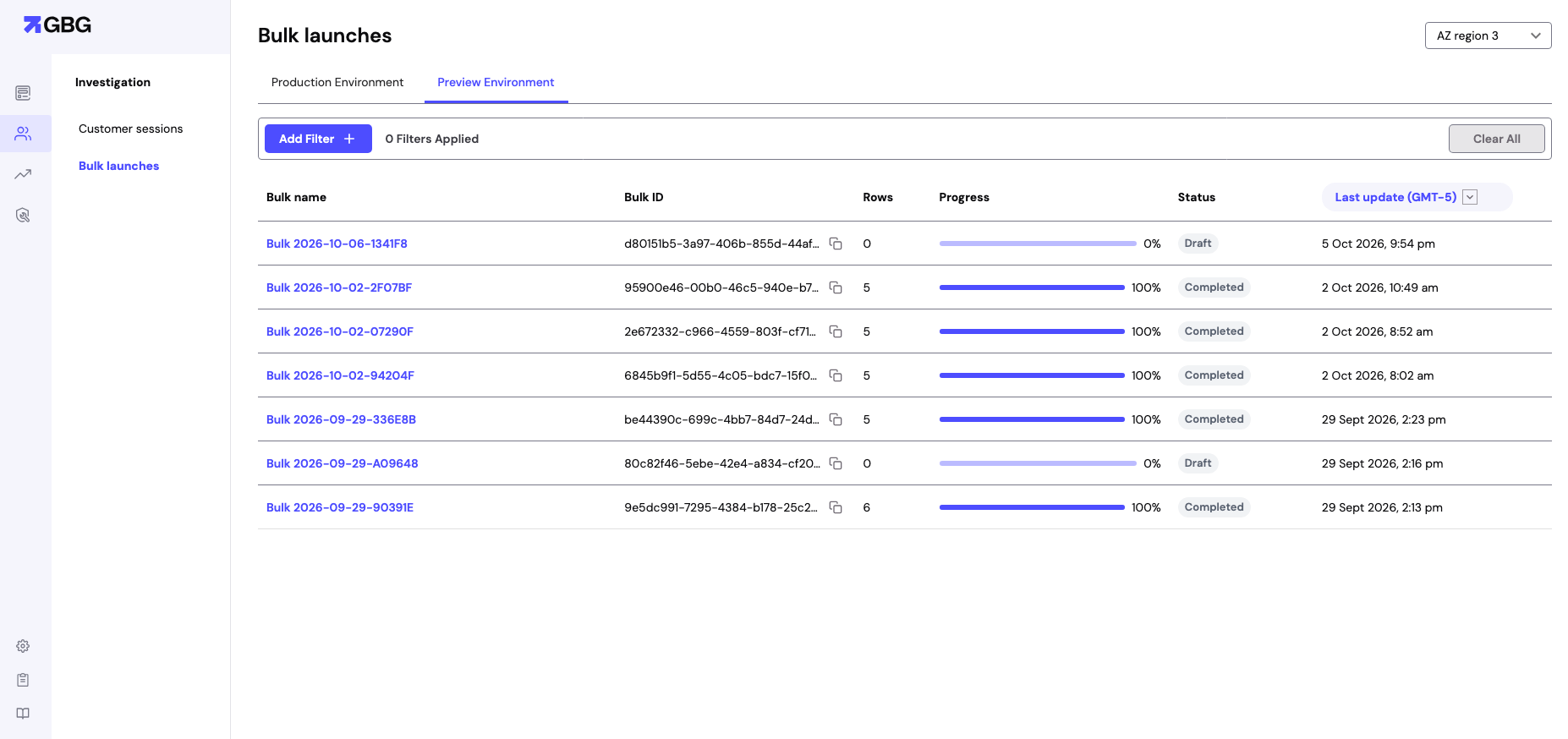 The page contains the following columns:
| Column | Description |
| - | - |
| Bulk name | The name of the bulk launch. Click it to view the rows of the bulk launch. |
| Bulk ID | The unique identifier of the bulk launch. Click the copy icon to copy it. |
| Rows | The number of rows in the bulk launch. |
| Progress | The percentage of rows that the platform has processed. |
| Status | The status of the bulk launch, for example Draft or Completed. |
| Last update | The date and time of the latest update to the bulk launch. |
To narrow down the list, click **Add Filter**. To remove every filter, click **Clear All**.
Filters work the same way as on the **Customer sessions** page. To learn more, see [Filter sessions](/docs/go-v2/platform/investigate/view-journey-session#filter-sessions).
## View the rows of a bulk launch
To view the rows of a bulk launch, click its name in the **Bulk name** column. The bulk launch page opens.
The page contains the following columns:
| Column | Description |
| - | - |
| Bulk name | The name of the bulk launch. Click it to view the rows of the bulk launch. |
| Bulk ID | The unique identifier of the bulk launch. Click the copy icon to copy it. |
| Rows | The number of rows in the bulk launch. |
| Progress | The percentage of rows that the platform has processed. |
| Status | The status of the bulk launch, for example Draft or Completed. |
| Last update | The date and time of the latest update to the bulk launch. |
To narrow down the list, click **Add Filter**. To remove every filter, click **Clear All**.
Filters work the same way as on the **Customer sessions** page. To learn more, see [Filter sessions](/docs/go-v2/platform/investigate/view-journey-session#filter-sessions).
## View the rows of a bulk launch
To view the rows of a bulk launch, click its name in the **Bulk name** column. The bulk launch page opens.
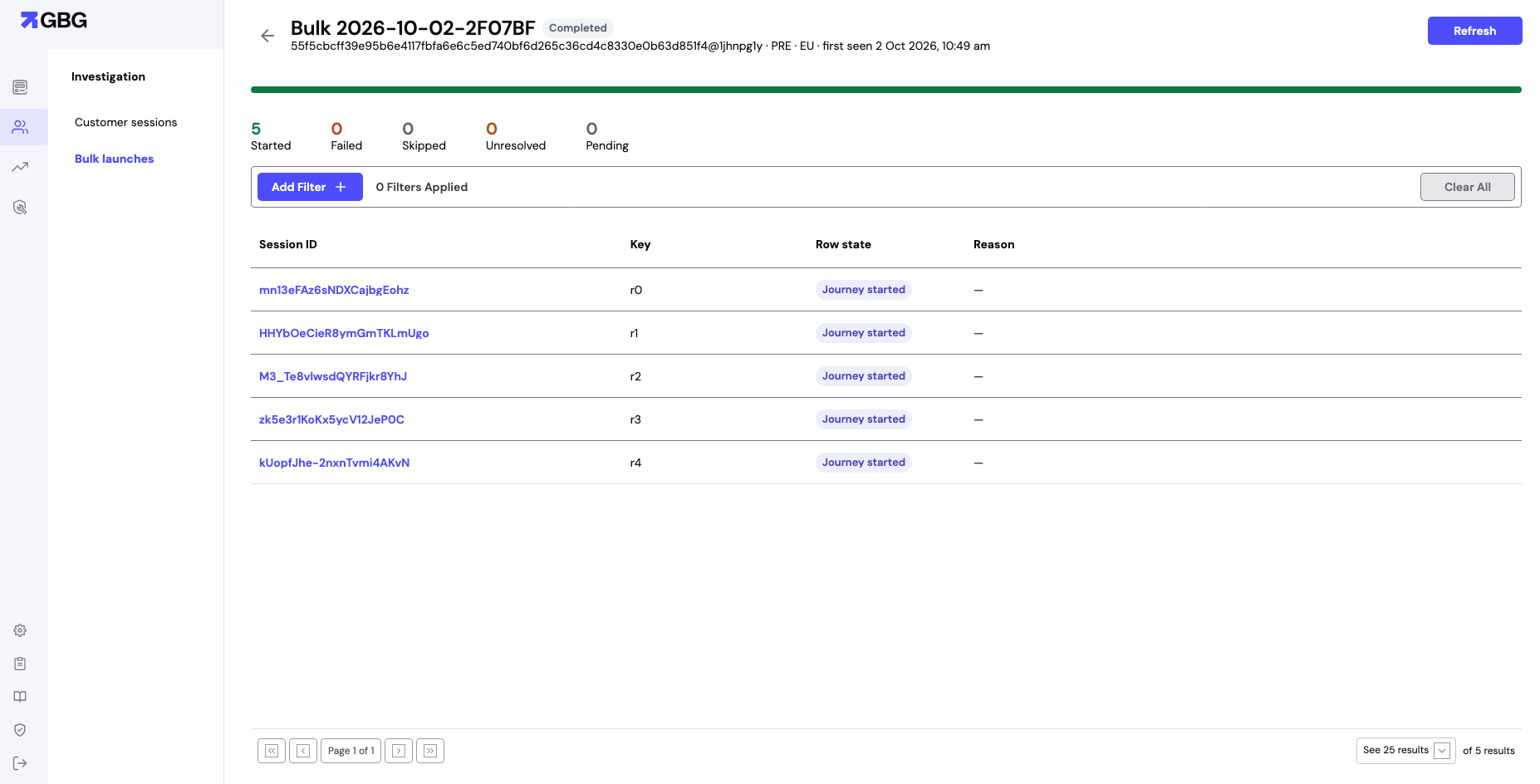 The top of the page shows the bulk name, the status, the mode, and the region. It also shows the date and time that the platform first recorded the bulk launch.
The progress bar shows how much of the bulk launch has run. To update the page with the latest progress, click **Refresh**.
Under the progress bar, the page counts the rows in each of the following states:
| Count | Description |
| - | - |
| Started | Rows that started a journey session. |
| Failed | Rows that failed before they could start a journey session. |
| Skipped | Rows that the platform didn't run, for example because you stopped the bulk launch. |
| Unresolved | Rows that the platform couldn't resolve to a final state. |
| Pending | Rows that are waiting to run. |
The table contains the following columns:
| Column | Description |
| - | - |
| Session ID | The ID of the journey session that the row started. Click it to open the details of the session. |
| Key | The identifier of the row in the bulk launch, for example r0 for the first row. |
| Row state | The state of the row, for example Journey started. |
| Reason | The reason for the row state, if one applies. |
To review the modules, data, and decision of a row, click its session ID. To learn more, see [View details of a journey session](/docs/go-v2/platform/investigate/view-journey-details).
To filter the rows, click **Add Filter**. To move between pages of rows, use the page controls under the table.
## Next steps
* To create a bulk launch from a journey, see [Bulk launch](/docs/go-v2/platform/bulk-launch).
* To review a journey session in detail, see [View details of a journey session](/docs/go-v2/platform/investigate/view-journey-details).
* To change the decision of a journey session, see [Change decisions](/docs/go-v2/platform/investigate/change-decisions).
The top of the page shows the bulk name, the status, the mode, and the region. It also shows the date and time that the platform first recorded the bulk launch.
The progress bar shows how much of the bulk launch has run. To update the page with the latest progress, click **Refresh**.
Under the progress bar, the page counts the rows in each of the following states:
| Count | Description |
| - | - |
| Started | Rows that started a journey session. |
| Failed | Rows that failed before they could start a journey session. |
| Skipped | Rows that the platform didn't run, for example because you stopped the bulk launch. |
| Unresolved | Rows that the platform couldn't resolve to a final state. |
| Pending | Rows that are waiting to run. |
The table contains the following columns:
| Column | Description |
| - | - |
| Session ID | The ID of the journey session that the row started. Click it to open the details of the session. |
| Key | The identifier of the row in the bulk launch, for example r0 for the first row. |
| Row state | The state of the row, for example Journey started. |
| Reason | The reason for the row state, if one applies. |
To review the modules, data, and decision of a row, click its session ID. To learn more, see [View details of a journey session](/docs/go-v2/platform/investigate/view-journey-details).
To filter the rows, click **Add Filter**. To move between pages of rows, use the page controls under the table.
## Next steps
* To create a bulk launch from a journey, see [Bulk launch](/docs/go-v2/platform/bulk-launch).
* To review a journey session in detail, see [View details of a journey session](/docs/go-v2/platform/investigate/view-journey-details).
* To change the decision of a journey session, see [Change decisions](/docs/go-v2/platform/investigate/change-decisions).