> ## Documentation Index
> Fetch the complete documentation index at: https://docs.go.gbgplc.com/llms.txt
> Use this file to discover all available pages before exploring further.
# Bulk launch
> Run a published journey for many customer records at once in GBG Go by uploading a CSV file, and review the results in Investigation.
Bulk launch lets you run a journey for many customer records at once. You upload a CSV file with one row for each journey, and the GBG Go platform runs every row on its servers.
Use a bulk launch when you already hold the data that the journey needs. Common examples are verifying a group of new employees, screening existing customers again against PEPs and sanctions lists, and customer remediation.
If your journey has a step that your customer must complete, then the **Create bulk launch** action is unavailable. See [When the Create bulk launch action is unavailable](#when-the-create-bulk-launch-action-is-unavailable).
## How a bulk launch works
A bulk launch has the following characteristics:
* **No customer interaction**: Each row runs as a separate journey and goes straight to a decision. Your customers don't see any screens, and the journey doesn't wait for them.
* **Documents and biometrics supported**: A row can include attachments, so the journey can run document and biometric checks as well as data checks.
* **Runs on the server**: The GBG Go platform processes the rows in the background. The bulk launch continues when you close the browser tab or go to another page.
* **Results in Investigation**: You create a bulk launch from the journey. You follow its progress and review the outcome of each row on the **Bulk launches** page in Investigation.
* **Fixed once it runs**: You can't change a bulk launch or run its rows again. To correct rows that failed, fix them in your CSV file and create a new bulk launch.
## Before you begin
Ensure you have the following:
* A journey published to the environment that you want to run it in.
* A role that includes the bulk permission. The permission to start a single journey doesn't include it. If you don't have this role, then contact [GBG support](/docs/go-v2/get-started/troubleshooting-and-support).
* The customer data for the journey, ready to add to a CSV file.
## Open the Create bulk launch dialog box
You can open the Create bulk launch dialog box from the Dashboard or from the **Bulk launches** page of the journey.
To open the dialog box from the Dashboard:
1. In the GBG Go platform, open your journey, and then click **Dashboard**.
2. Click the **Actions** list for the environment that you want to run the journey in.
3. Click **Create bulk launch**. The Create bulk launch dialog box appears.
To open the dialog box from the **Bulk launches** page:
1. In the GBG Go platform, open your journey, and then click **Bulk launches**.
2. Click **Create new bulk launch**.
3. Click **Production** or **Preview**. The Create bulk launch dialog box appears.
## Prepare your CSV file
Each journey has its own CSV template. The template contains the exact column headers that your journey version expects, so you don't need to work out the column names yourself.
To prepare your CSV file:
1. In the Create bulk launch dialog box, click **Download the template for this journey**.
2. Expand **Columns this journey needs** to see every column and how many of them the journey requires.
3. Add one row to the template for each journey that you want to run.
4. Save the file in CSV format.
The template grades each column as follows:
| Grade | Description |
| - | - |
| Required | The journey needs this column on every path. |
| Optional | The journey can use this column but doesn't need it. |
Your CSV file must meet the following requirements:
* Use UTF-8 character encoding.
* Use a comma as the delimiter.
* Keep the column headers exactly as they appear in the template.
* Contain at least one row of data. A file that contains only headers has no rows to run.
* Keep leading zeros in values such as postal codes, phone numbers, and identifiers. In a spreadsheet, format these cells as text.
For an example of a completed file, download the sample CSV file. The sample matches the columns of one journey only, so always start from the template for your own journey.
Download sample CSV file
## Create and run a bulk launch
A bulk launch in Production mode runs billable checks for every row in your CSV file. To check your file and your journey first, create the bulk launch in Preview mode.
To create and run a bulk launch:
1. In the Create bulk launch dialog box, select the options for your use case. The dialog box contains the following options:
| Option | Description |
| - | - |
| **Region** | The region that the bulk launch executes in. Select **US**, **EU**, or **AU**. Your organisation might not have access to every region. |
| **Mode** | The environment that the bulk launch executes in. Select **Production** or **Preview**. Preview mode doesn't make billable calls to data providers. |
| **Bulk name** | A name that helps you find the bulk launch later. This option is optional. If you leave it empty, then the platform names the bulk launch after its run ID, for example Bulk 73dc608b. |
| **Row data** | The CSV file that contains your rows. |
The region controls where the platform processes and stores your customers' data. Change it only if your organisation runs journeys in more than one region.
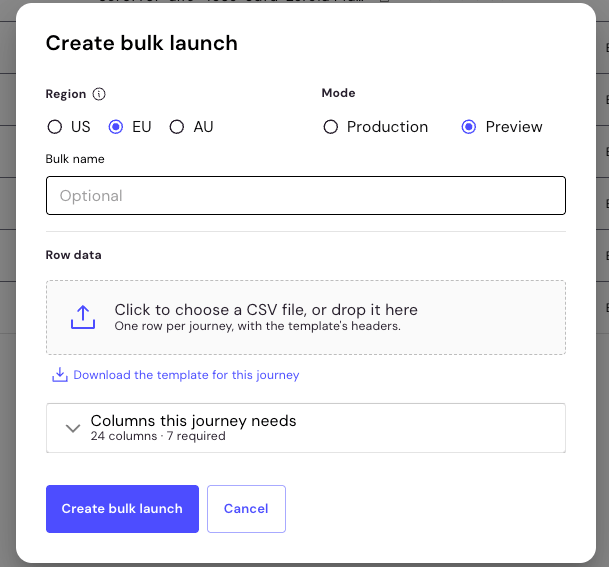 2. Under **Row data**, click the upload area and select your CSV file, or drop the file onto the area.
3. Click **Create bulk launch**.
The dialog box shows the filename, the number of rows, and how many rows are ready to run. You can no longer change the region or the mode. To use a different file, click **Replace**.
2. Under **Row data**, click the upload area and select your CSV file, or drop the file onto the area.
3. Click **Create bulk launch**.
The dialog box shows the filename, the number of rows, and how many rows are ready to run. You can no longer change the region or the mode. To use a different file, click **Replace**.
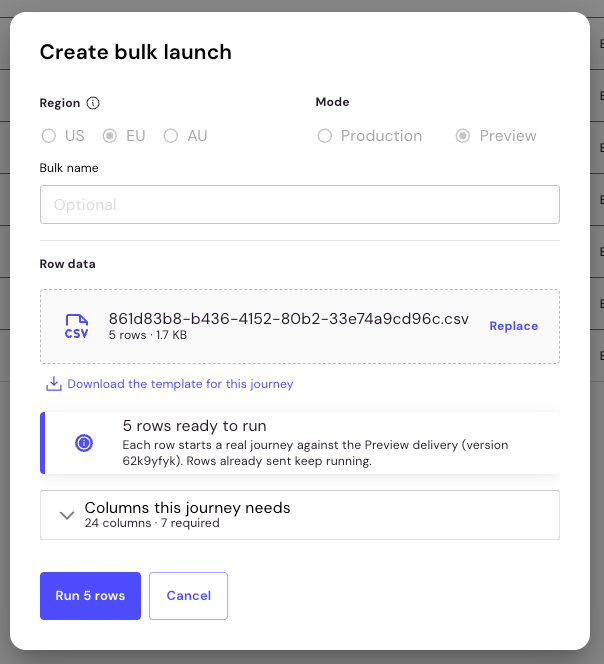 4. Click **Run rows**. The button shows the number of rows that it runs, for example **Run 5 rows**.
Each row starts a real journey against the journey version that you published to the selected mode. The bulk launch appears in the table on the **Bulk launches** page with a status of EXECUTED.
The platform validates your file before it runs any row. The validation checks the following:
* The file contains every required column.
* The file contains no unknown column headers.
* The values in each row use the expected format.
Before you create a large bulk launch in Production mode, create one in Preview mode with a few rows from the same file. This confirms that your columns map correctly and that the journey reaches the decisions you expect.
## Monitor a bulk launch
The **Bulk launches** page of the journey lists every bulk launch created for the journey. The progress and outcomes of each bulk launch are in Investigation.
4. Click **Run rows**. The button shows the number of rows that it runs, for example **Run 5 rows**.
Each row starts a real journey against the journey version that you published to the selected mode. The bulk launch appears in the table on the **Bulk launches** page with a status of EXECUTED.
The platform validates your file before it runs any row. The validation checks the following:
* The file contains every required column.
* The file contains no unknown column headers.
* The values in each row use the expected format.
Before you create a large bulk launch in Production mode, create one in Preview mode with a few rows from the same file. This confirms that your columns map correctly and that the journey reaches the decisions you expect.
## Monitor a bulk launch
The **Bulk launches** page of the journey lists every bulk launch created for the journey. The progress and outcomes of each bulk launch are in Investigation.
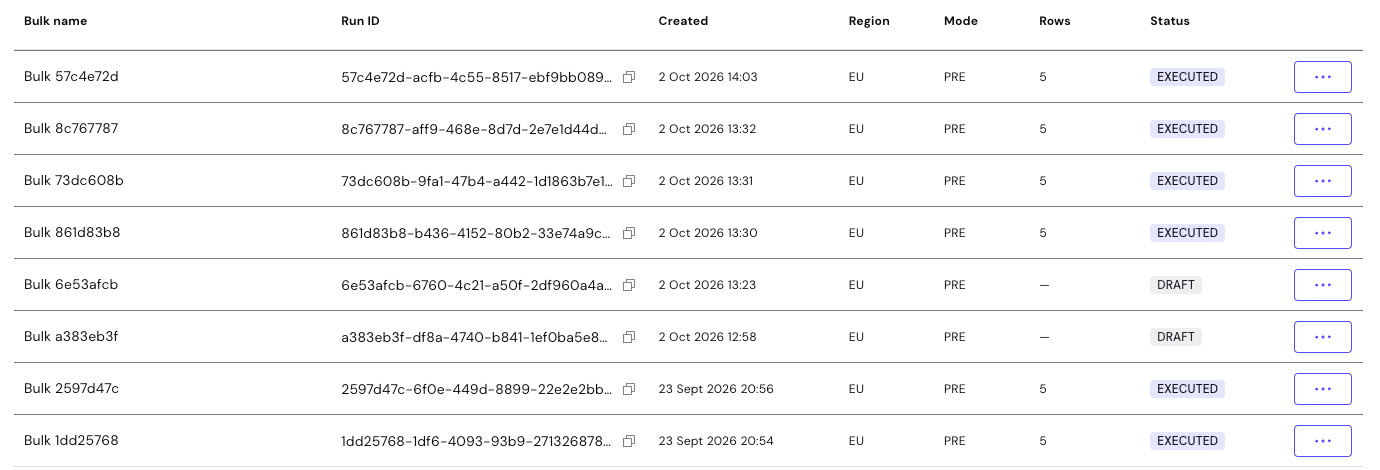 The table contains the following columns:
| Column | Description |
| - | - |
| Bulk name | The name of the bulk launch. Click it to open the bulk launch page. |
| Run ID | The unique identifier of the bulk launch. Click the copy icon to copy it. |
| Created | The creation date and time of the bulk launch. |
| Region | The region that the bulk launch executes in. |
| Mode | The environment that the bulk launch executes in. For example, PRE means Preview. |
| Rows | The number of rows in the CSV file. |
| Status | The status of the bulk launch. A status of EXECUTED means that the platform has sent the rows for processing. A status of DRAFT means that the bulk launch hasn't run yet. |
To follow the progress of a bulk launch:
1. In the GBG Go platform, open your journey, and then click **Bulk launches**.
2. Find your bulk launch in the table.
3. Click **⋯** in the row of the bulk launch, and then click **View results**. The bulk launch opens on the **Bulk launches** page in Investigation.
Investigation shows the progress of the bulk launch, the state of each row, and the journey session that each row starts. To learn more, see [View bulk launches](/docs/go-v2/platform/investigate/view-bulk-launches).
## View a bulk launch
The bulk launch page shows the settings of a bulk launch and the file that it runs. To open the page, click the bulk name in the table on the **Bulk launches** page.
The table contains the following columns:
| Column | Description |
| - | - |
| Bulk name | The name of the bulk launch. Click it to open the bulk launch page. |
| Run ID | The unique identifier of the bulk launch. Click the copy icon to copy it. |
| Created | The creation date and time of the bulk launch. |
| Region | The region that the bulk launch executes in. |
| Mode | The environment that the bulk launch executes in. For example, PRE means Preview. |
| Rows | The number of rows in the CSV file. |
| Status | The status of the bulk launch. A status of EXECUTED means that the platform has sent the rows for processing. A status of DRAFT means that the bulk launch hasn't run yet. |
To follow the progress of a bulk launch:
1. In the GBG Go platform, open your journey, and then click **Bulk launches**.
2. Find your bulk launch in the table.
3. Click **⋯** in the row of the bulk launch, and then click **View results**. The bulk launch opens on the **Bulk launches** page in Investigation.
Investigation shows the progress of the bulk launch, the state of each row, and the journey session that each row starts. To learn more, see [View bulk launches](/docs/go-v2/platform/investigate/view-bulk-launches).
## View a bulk launch
The bulk launch page shows the settings of a bulk launch and the file that it runs. To open the page, click the bulk name in the table on the **Bulk launches** page.
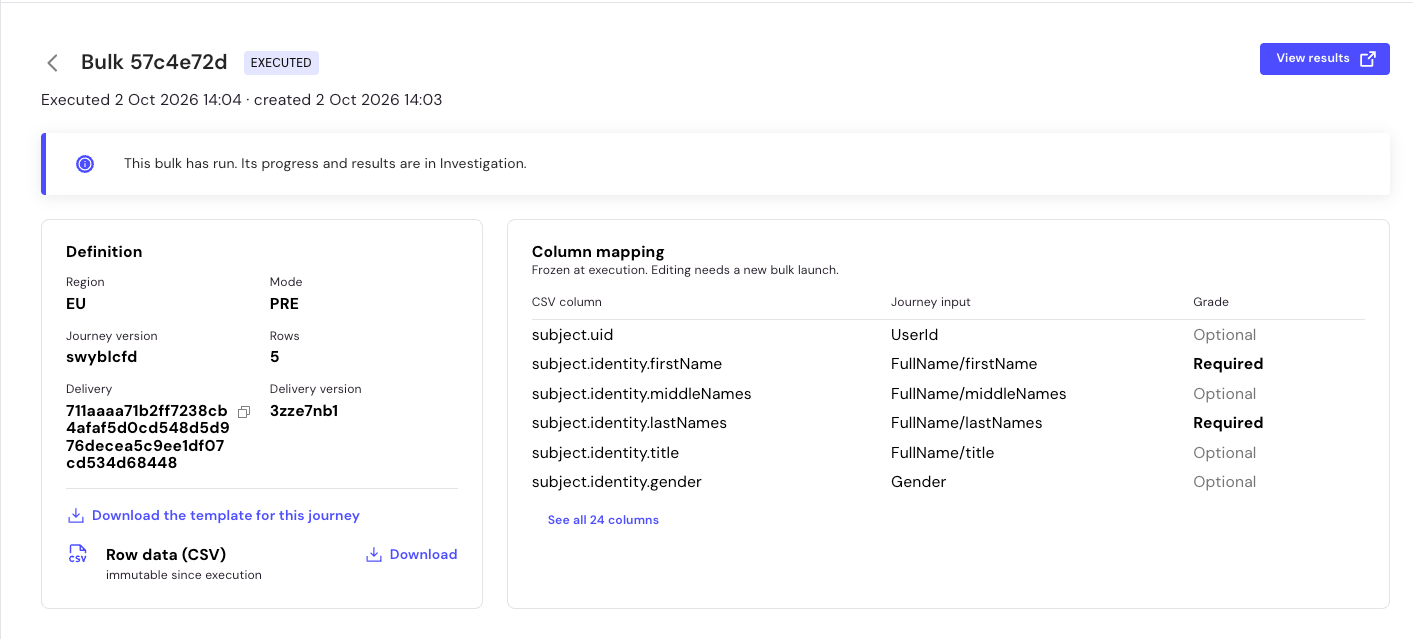 The top of the page shows the bulk name and the status of the bulk launch. It also shows the execution date and time and the creation date and time.
The page doesn't show row outcomes or progress. To see them, click **View results**. The bulk launch opens on the **Bulk launches** page in Investigation.
The page contains the following panels:
| Panel | Description |
| - | - |
| Definition | The settings of the bulk launch, the template for the journey, and the CSV file that the bulk launch uses. |
| Column mapping | How each column in your CSV file maps to a journey input, and the grade of each column. |
The **Definition** panel contains the following fields:
| Field | Description |
| - | - |
| Region | The region that the bulk launch executes in. |
| Mode | The environment that the bulk launch executes in. For example, PRE means Preview. |
| Journey version | The version of the journey that the bulk launch uses. |
| Rows | The number of rows in the CSV file. |
| Delivery | The ID of the delivery that the bulk launch uses. A delivery holds the deployment settings of the journey, such as its regions and environments. Click the copy icon to copy it. |
| Delivery version | The version of the delivery that the bulk launch uses. |
Under the fields, you can download the template for the journey and the CSV file that the bulk launch uses. To download the CSV file, click **Download** next to **Row data (CSV)**.
The **Column mapping** panel shows the first few columns of your CSV file. To see every column, click the **See all** link, for example **See all 24 columns**.
You can't change the CSV file or the column mapping after the bulk launch executes. To make a change, create a new bulk launch.
## Stop a bulk launch
You can't restart a bulk launch after you stop it. To run the remaining rows, create a new bulk launch.
You can stop a bulk launch while it's queued or running.
When you stop a bulk launch, the following happens:
* Rows that the platform has already sent to a data provider finish as normal.
* The platform skips rows that haven't started.
## Automatic stop after repeated server errors
The platform stops a bulk launch automatically when server errors suggest a wider problem. This protects you from the cost of a run that can't complete.
The platform stops sending rows when both of the following apply:
* 20 or more rows have failed with a persistent server error.
* Those rows make up 20% or more of the rows processed so far.
A row that fails verification doesn't count towards these limits, and neither does a row that contains a format error.
## Data storage and retention
The platform stores uploaded files and row results separately for each organisation and each region. The standard GBG Go data retention policies apply to them. To learn more, see [Manage data retention policies](/docs/go-v2/platform/settings/manage-data-retention-policies).
## When the Create bulk launch action is unavailable
The **Create bulk launch** action is unavailable when the journey includes a step that your customer must complete. A bulk launch has no customer present, so the journey can't finish.
To use bulk launch, remove the step that your customer must complete from the journey, and then publish the new version.
## Next steps
* To review the progress and rows of a bulk launch, see [View bulk launches](/docs/go-v2/platform/investigate/view-bulk-launches).
* To check the data that your journey accepts, see [How to determine field structure for submission](/docs/go-v2/developer-integration/execute-customer-journeys/manage-schemas-step#how-to-determine-field-structure-for-submission).
* To publish your journey to the production environment, see [Publish journey](/docs/go-v2/platform/journey-builder/publish-journey).
* To send a hosted journey to a single customer, see [No-code quickstart](/docs/go-v2/get-started/quickstart/quickstart-invite-a-customer).
The top of the page shows the bulk name and the status of the bulk launch. It also shows the execution date and time and the creation date and time.
The page doesn't show row outcomes or progress. To see them, click **View results**. The bulk launch opens on the **Bulk launches** page in Investigation.
The page contains the following panels:
| Panel | Description |
| - | - |
| Definition | The settings of the bulk launch, the template for the journey, and the CSV file that the bulk launch uses. |
| Column mapping | How each column in your CSV file maps to a journey input, and the grade of each column. |
The **Definition** panel contains the following fields:
| Field | Description |
| - | - |
| Region | The region that the bulk launch executes in. |
| Mode | The environment that the bulk launch executes in. For example, PRE means Preview. |
| Journey version | The version of the journey that the bulk launch uses. |
| Rows | The number of rows in the CSV file. |
| Delivery | The ID of the delivery that the bulk launch uses. A delivery holds the deployment settings of the journey, such as its regions and environments. Click the copy icon to copy it. |
| Delivery version | The version of the delivery that the bulk launch uses. |
Under the fields, you can download the template for the journey and the CSV file that the bulk launch uses. To download the CSV file, click **Download** next to **Row data (CSV)**.
The **Column mapping** panel shows the first few columns of your CSV file. To see every column, click the **See all** link, for example **See all 24 columns**.
You can't change the CSV file or the column mapping after the bulk launch executes. To make a change, create a new bulk launch.
## Stop a bulk launch
You can't restart a bulk launch after you stop it. To run the remaining rows, create a new bulk launch.
You can stop a bulk launch while it's queued or running.
When you stop a bulk launch, the following happens:
* Rows that the platform has already sent to a data provider finish as normal.
* The platform skips rows that haven't started.
## Automatic stop after repeated server errors
The platform stops a bulk launch automatically when server errors suggest a wider problem. This protects you from the cost of a run that can't complete.
The platform stops sending rows when both of the following apply:
* 20 or more rows have failed with a persistent server error.
* Those rows make up 20% or more of the rows processed so far.
A row that fails verification doesn't count towards these limits, and neither does a row that contains a format error.
## Data storage and retention
The platform stores uploaded files and row results separately for each organisation and each region. The standard GBG Go data retention policies apply to them. To learn more, see [Manage data retention policies](/docs/go-v2/platform/settings/manage-data-retention-policies).
## When the Create bulk launch action is unavailable
The **Create bulk launch** action is unavailable when the journey includes a step that your customer must complete. A bulk launch has no customer present, so the journey can't finish.
To use bulk launch, remove the step that your customer must complete from the journey, and then publish the new version.
## Next steps
* To review the progress and rows of a bulk launch, see [View bulk launches](/docs/go-v2/platform/investigate/view-bulk-launches).
* To check the data that your journey accepts, see [How to determine field structure for submission](/docs/go-v2/developer-integration/execute-customer-journeys/manage-schemas-step#how-to-determine-field-structure-for-submission).
* To publish your journey to the production environment, see [Publish journey](/docs/go-v2/platform/journey-builder/publish-journey).
* To send a hosted journey to a single customer, see [No-code quickstart](/docs/go-v2/get-started/quickstart/quickstart-invite-a-customer).