> ## Documentation Index
> Fetch the complete documentation index at: https://docs.go.gbgplc.com/llms.txt
> Use this file to discover all available pages before exploring further.
# How to use the Manual Review module in Go
> Learn how to use the Manual Review module in GBG Go.
The Manual Review module pauses a journey and waits for a human reviewer to accept or deny the subject before execution continues. Use it when a case needs someone to look at it, for example when a screening module returns a match that you don't want to accept or reject automatically.
For an overview of the Manual Review module, its capabilities, and default outcomes, see the [Manual Review module](/docs/go-v2/platform/modules/utilities/manual-review) reference.
This guide shows you how to build a journey that routes matches to a reviewer, how the end user experiences the pause, and how an analyst submits the decision in the Investigation portal.
## Before you start
* You can create and publish journeys in GBG Go.
* You can access the Investigation portal.
## Step 1: Build a journey that includes the Manual Review module
Create a journey that sends the cases you want a human to see to the Manual Review module. The example in this guide screens the subject, routes any match to a reviewer, and ends the journey on the reviewer's decision.
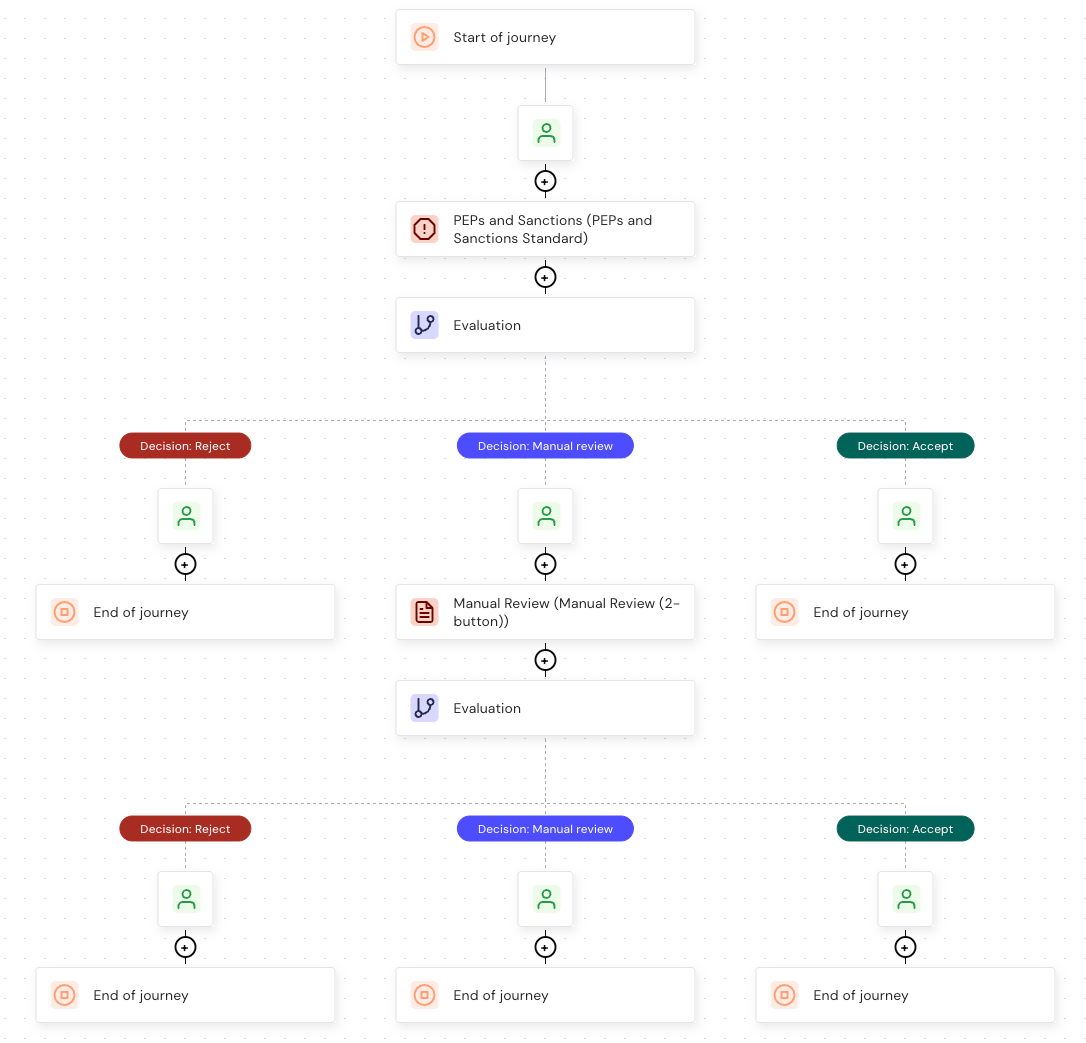 The example journey is built as follows:
1. Add a **PEPs and Sanctions** module, then add an **Evaluation** node after it.
2. In the Evaluation node, configure a **Manual review** decision that applies when the screening module returns a match.
The example journey is built as follows:
1. Add a **PEPs and Sanctions** module, then add an **Evaluation** node after it.
2. In the Evaluation node, configure a **Manual review** decision that applies when the screening module returns a match.
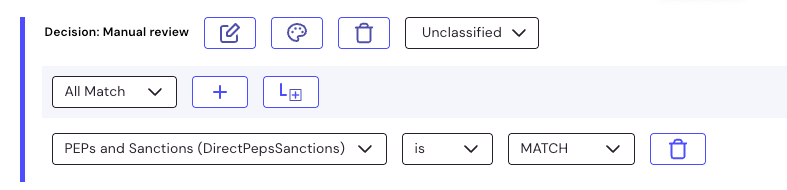 3. Add the **Manual Review** module to the **Decision: Manual review** path.
4. Add a second **Evaluation** node after the **Manual Review** module, then configure the decisions that route the reviewer's choice:
* An **Accept** decision that applies when the **Manual Review** module returns Accept.
* A **Reject** decision that applies when the **Manual Review** module returns Deny.
5. Publish the journey.
With this configuration, a subject who is not a match never reaches the reviewer. A subject who is a match pauses at the Manual Review module, and the reviewer's decision determines how the journey ends.
The Manual Review module pauses journey execution until a reviewer submits a decision or the configured duration elapses. For the capabilities and outcomes the module returns, see [Manual Review](/docs/go-v2/platform/modules/utilities/manual-review).
## Step 2: The end user submits their details
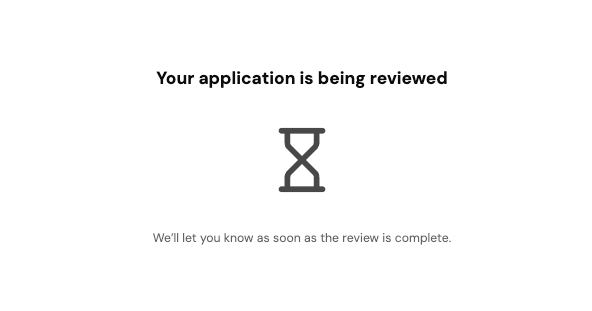
When the journey reaches the Manual Review module, it pauses. The end user sees a message telling them that their submission is being reviewed, and the journey stays in progress until a decision is reached or the configured duration elapses.
3. Add the **Manual Review** module to the **Decision: Manual review** path.
4. Add a second **Evaluation** node after the **Manual Review** module, then configure the decisions that route the reviewer's choice:
* An **Accept** decision that applies when the **Manual Review** module returns Accept.
* A **Reject** decision that applies when the **Manual Review** module returns Deny.
5. Publish the journey.
With this configuration, a subject who is not a match never reaches the reviewer. A subject who is a match pauses at the Manual Review module, and the reviewer's decision determines how the journey ends.
The Manual Review module pauses journey execution until a reviewer submits a decision or the configured duration elapses. For the capabilities and outcomes the module returns, see [Manual Review](/docs/go-v2/platform/modules/utilities/manual-review).
## Step 2: The end user submits their details
When the journey reaches the Manual Review module, it pauses. The end user sees a message telling them that their submission is being reviewed, and the journey stays in progress until a decision is reached or the configured duration elapses.
 ## Step 3: Open the review in the Investigation portal
To find a session that is waiting for a decision:
1. In GBG Go, click **Investigation**. The Investigation portal opens.
2. Open the session you want to review.
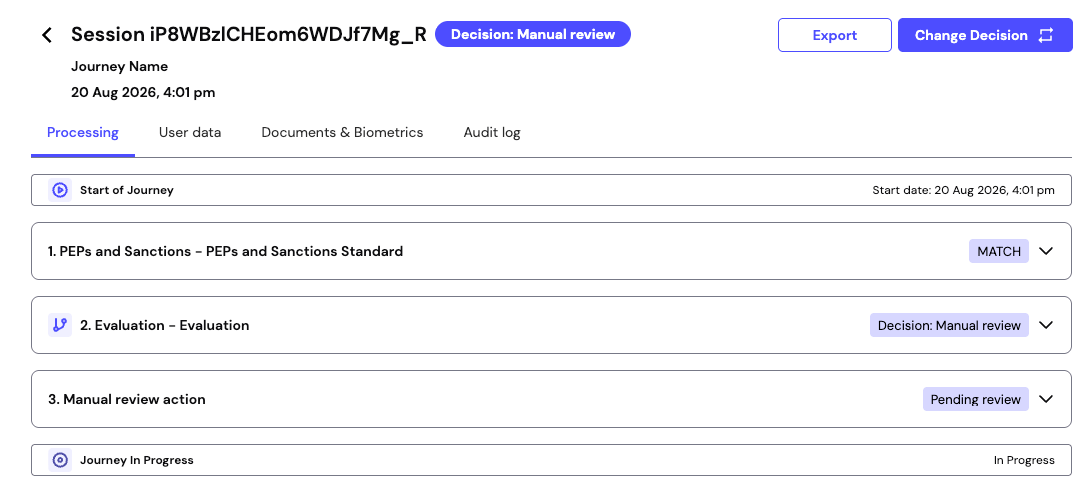
On the **Processing** tab, the manual review action shows a **Pending review** status, and the journey shows as *In Progress*.
## Step 3: Open the review in the Investigation portal
To find a session that is waiting for a decision:
1. In GBG Go, click **Investigation**. The Investigation portal opens.
2. Open the session you want to review.
On the **Processing** tab, the manual review action shows a **Pending review** status, and the journey shows as *In Progress*.
 ## Step 4: Submit the decision
To submit the decision:
1. Expand the manual review action.
2. Click **Open review**. The Manual review dialog is displayed.
3. Click **Accept** or **Deny**.
## Step 4: Submit the decision
To submit the decision:
1. Expand the manual review action.
2. Click **Open review**. The Manual review dialog is displayed.
3. Click **Accept** or **Deny**.
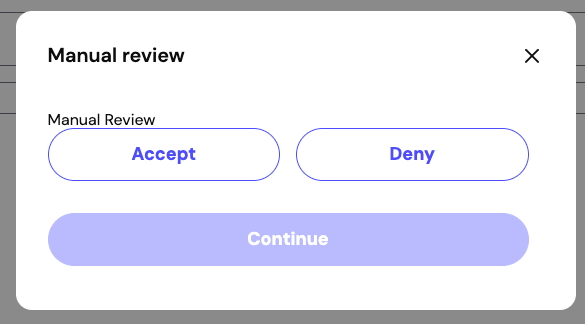 4. Click **Continue**.
This guide uses **Accept**, which the example journey routes to the Accept decision.
## Step 5: Confirm the journey completed
Once you submit the decision, the journey resumes and runs to completion. The end user sees the completion screen for the path the journey took.
Back in the Investigation portal, the session shows the manual review action with the decision you submitted, the final evaluation decision that followed from it, and an end date.
4. Click **Continue**.
This guide uses **Accept**, which the example journey routes to the Accept decision.
## Step 5: Confirm the journey completed
Once you submit the decision, the journey resumes and runs to completion. The end user sees the completion screen for the path the journey took.
Back in the Investigation portal, the session shows the manual review action with the decision you submitted, the final evaluation decision that followed from it, and an end date.
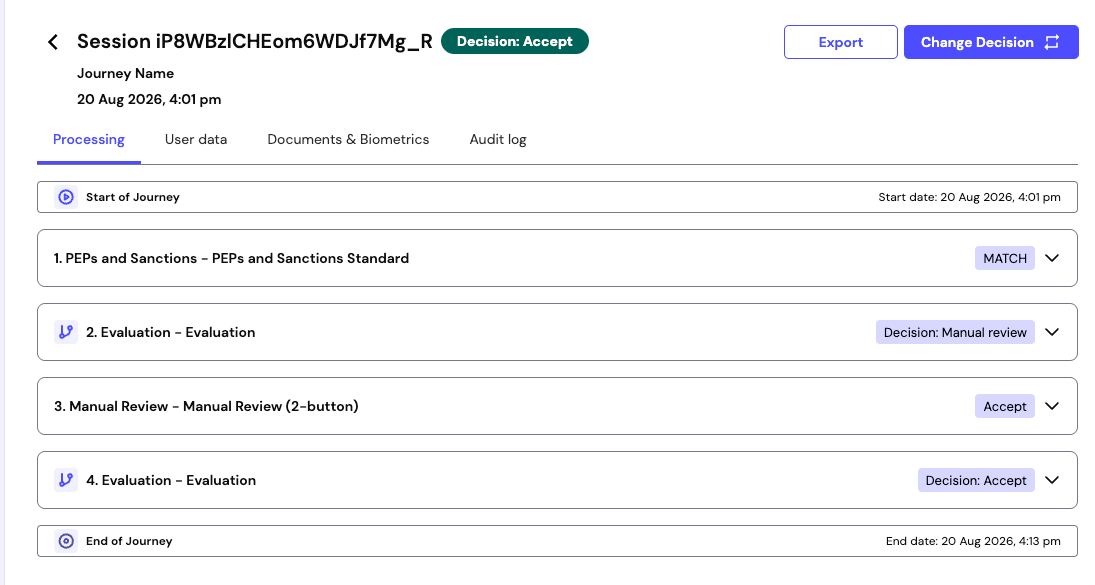 In this example the session ends with a **Decision: Accept**, because the second Evaluation node routes an accepted review to the Accept decision.
## Manual Review outcomes
The Manual Review module returns the following outcomes, which you can route on in an Evaluation node:
| Outcome | Description |
| --------- | ------------------------------------------------------------------------------------------------------ |
| `Accept` | The reviewer approved the subject, and the journey continues along the accepted path. |
| `Deny` | The reviewer rejected the subject, and the journey continues along the denied path. |
| `Timeout` | No reviewer submitted a decision within the configured duration, so the journey continues without one. |
| `Error` | An unexpected error occurred, so the module returned no decision. |
In this example the session ends with a **Decision: Accept**, because the second Evaluation node routes an accepted review to the Accept decision.
## Manual Review outcomes
The Manual Review module returns the following outcomes, which you can route on in an Evaluation node:
| Outcome | Description |
| --------- | ------------------------------------------------------------------------------------------------------ |
| `Accept` | The reviewer approved the subject, and the journey continues along the accepted path. |
| `Deny` | The reviewer rejected the subject, and the journey continues along the denied path. |
| `Timeout` | No reviewer submitted a decision within the configured duration, so the journey continues without one. |
| `Error` | An unexpected error occurred, so the module returned no decision. |