> ## Documentation Index
> Fetch the complete documentation index at: https://docs.go.gbgplc.com/llms.txt
> Use this file to discover all available pages before exploring further.
# Set up evaluation
> Add evaluation decision points to your GBG GO journeys to accept, reject, or flag users based on verification results.
Evaluation is used to introduce decision points in a journey, determining what happens based on verification results. It is part of the Routing category in GBG GO.
Evaluation allows you to:
* Define rules for accepting, rejecting, or flagging users.
* Automate decisions based on verification outcomes, risk scores, or compliance requirements.
* Route users to different paths depending on the conditions you configure.
When you open **Routing** in the **Browse and add modules** section, you will see the **Evaluation** module, which is used to create these decision points.
## How evaluation works
Evaluation works by assessing the results from previous modules in the journey. Based on the conditions you set, it determines the next step for each user.
This section assumes you have [created a journey](/docs/go-v1/platform/journey-builder/create-journey) and [configured modules](/docs/go-v1/platform/journey-builder/configure-module) that produce outcomes to evaluate. Here's an example of how evaluation fits into a customer journey:
In the image below, the Evaluation node is placed after the **Document Classification** and **Document Authentication** modules.
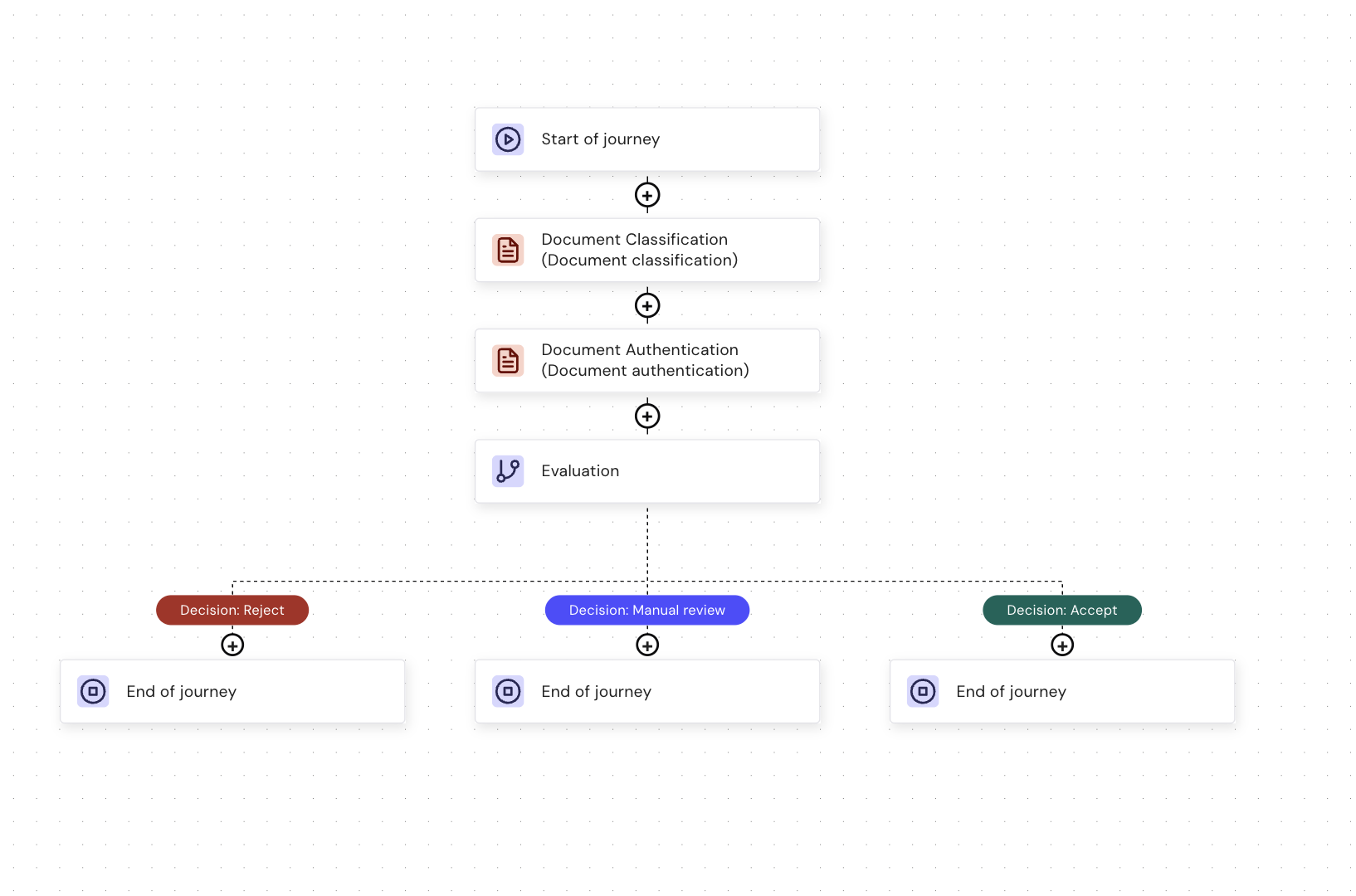 For this example, the default decisions of Accept, Reject, and Manual Review is used.
The Evaluation node assesses the results from these modules to decide whether to accept, reject, or flag the user for manual review.
In this case, the **Document Classification** module has the following outcomes:
* Document Classified
* Document Classification Mismatch
* Document NOT Classified
* Document Partially Classified
While the **Document Authentication** module has these outcomes:
* Low Risk
* Medium Risk
* High Risk
* Failed
* ERROR
When you navigate to **Evaluation** > **Configure decisions**, you can set conditions based on these outcomes. For example:
For this example, the default decisions of Accept, Reject, and Manual Review is used.
The Evaluation node assesses the results from these modules to decide whether to accept, reject, or flag the user for manual review.
In this case, the **Document Classification** module has the following outcomes:
* Document Classified
* Document Classification Mismatch
* Document NOT Classified
* Document Partially Classified
While the **Document Authentication** module has these outcomes:
* Low Risk
* Medium Risk
* High Risk
* Failed
* ERROR
When you navigate to **Evaluation** > **Configure decisions**, you can set conditions based on these outcomes. For example:
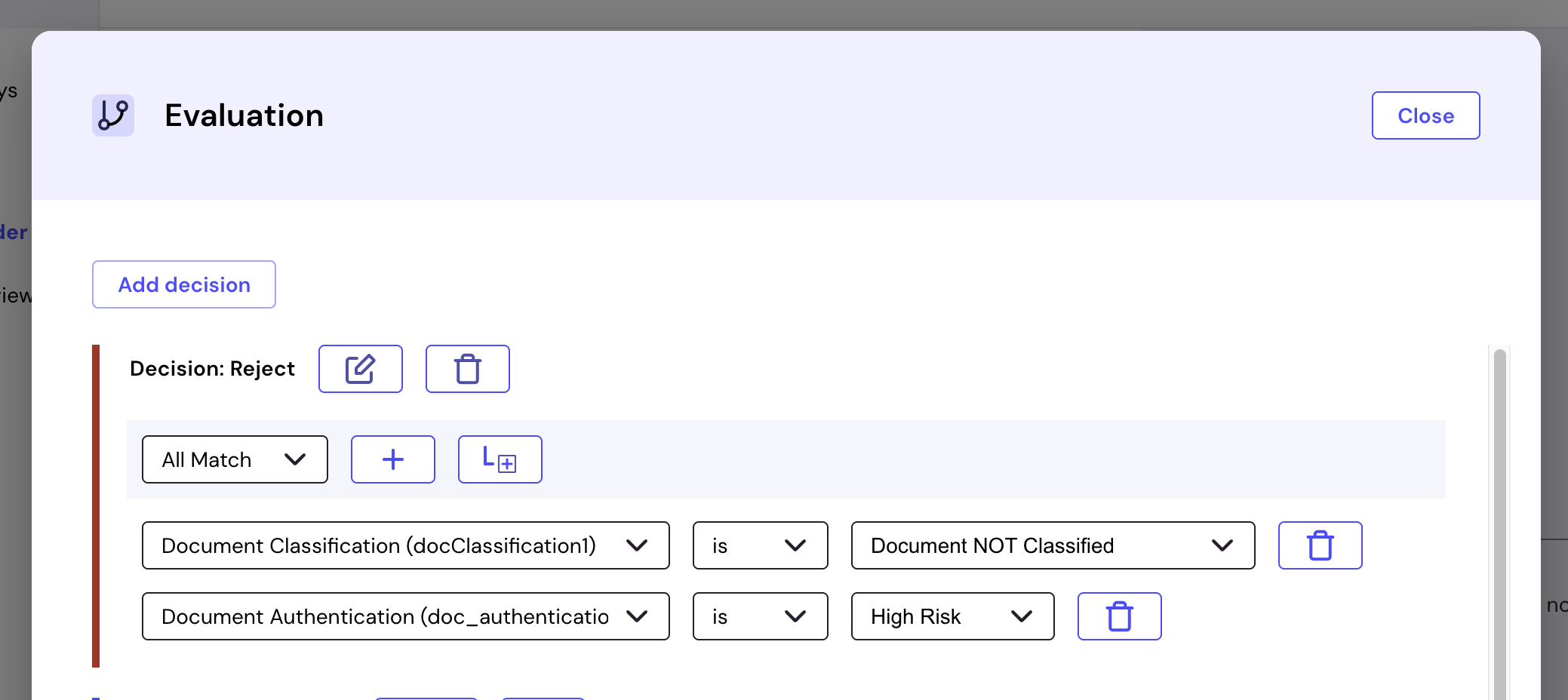 Here, for Decision: Reject, the conditions are set as follows: if Document Classification is Document NOT Classified and/or Document Authentication is High Risk, reject user.
Ensure you set conditions for each decision.
Evaluation is great for routing users based on verification results, ensuring that only verified users proceed. Unverified or high-risk users are appropriately directed to other modules for further verification or rejected.
To add modules, click the "**+**" icon on the Evaluation decision in the journey builder and click **Choose a module from the sidebar**. Next, select the module you want to add to that decision path.
## Add evaluation to your journey
Evaluation is used within Routing to determine the next step based on verification results.
### How to add evaluation:
To add evaluation:
1. Open your journey in the journey editor.
2. Click **Browse and add modules** in the left sidebar.
3. Select the **Routing** category.
4. Inside Routing, select **Evaluation** and then click **Add to journey**.
5. Connect the **Evaluation** module to the previous step in the journey.
Once added, Evaluation displays three default decision paths:
* **Decision: Accept** – The user is approved and moves to the next step.
* **Decision: Reject** – The user does not meet the criteria and exits the journey.
* **Decision: Manual Review** – The user is flagged for additional checks.
The default decisions can be customized based on your verification requirements. For example, you can rename them or add more decisions as needed.
## Configure evaluation rules
After adding the Evaluation module, you must define conditions that trigger different decisions. Properly configuring Evaluation ensures that users follow the correct verification process without unnecessary rejections.
To configure evaluation decisions:
1. Click the **Evaluation** module inside your journey.
2. Click **Configure decisions** to open the decision settings.
3. Click **Add decision** to create a new condition.
4. Select a match condition from the dropdown, such as:
* Verification Passed, for example, "User successfully verified"
* Verification Failed, for example, "Document check failed"
* Fraud Score, for example, "User flagged as high-risk"
5. Click the **+ icon** to add multiple conditions if needed.
6. Define an outcome for each condition:
* **Accept** – The user continues to the next step.
* **Reject** – The user is removed from the journey.
* **Manual Review** – The user is flagged for further verification.
7. Click **Save** to apply the decision logic.
For more details on configuring decisions, refer to [How to configure evaluation decisions in GO](/docs/go-v1/guides/product-guides/configure-evaluation).
## Example use case
A customer uploads an identity document for verification:
* If the document is valid, they move forward.
* If the document is flagged as fraudulent, they are rejected.
* If the document is unclear, they go to manual review.
## What’s next?
After configuring Evaluation, you need to publish your journey.
* **[Publish journeys](/docs/go-v1/platform/journey-builder/publish-journey)** – Deploy your journey after configuring evaluation rules.
Here, for Decision: Reject, the conditions are set as follows: if Document Classification is Document NOT Classified and/or Document Authentication is High Risk, reject user.
Ensure you set conditions for each decision.
Evaluation is great for routing users based on verification results, ensuring that only verified users proceed. Unverified or high-risk users are appropriately directed to other modules for further verification or rejected.
To add modules, click the "**+**" icon on the Evaluation decision in the journey builder and click **Choose a module from the sidebar**. Next, select the module you want to add to that decision path.
## Add evaluation to your journey
Evaluation is used within Routing to determine the next step based on verification results.
### How to add evaluation:
To add evaluation:
1. Open your journey in the journey editor.
2. Click **Browse and add modules** in the left sidebar.
3. Select the **Routing** category.
4. Inside Routing, select **Evaluation** and then click **Add to journey**.
5. Connect the **Evaluation** module to the previous step in the journey.
Once added, Evaluation displays three default decision paths:
* **Decision: Accept** – The user is approved and moves to the next step.
* **Decision: Reject** – The user does not meet the criteria and exits the journey.
* **Decision: Manual Review** – The user is flagged for additional checks.
The default decisions can be customized based on your verification requirements. For example, you can rename them or add more decisions as needed.
## Configure evaluation rules
After adding the Evaluation module, you must define conditions that trigger different decisions. Properly configuring Evaluation ensures that users follow the correct verification process without unnecessary rejections.
To configure evaluation decisions:
1. Click the **Evaluation** module inside your journey.
2. Click **Configure decisions** to open the decision settings.
3. Click **Add decision** to create a new condition.
4. Select a match condition from the dropdown, such as:
* Verification Passed, for example, "User successfully verified"
* Verification Failed, for example, "Document check failed"
* Fraud Score, for example, "User flagged as high-risk"
5. Click the **+ icon** to add multiple conditions if needed.
6. Define an outcome for each condition:
* **Accept** – The user continues to the next step.
* **Reject** – The user is removed from the journey.
* **Manual Review** – The user is flagged for further verification.
7. Click **Save** to apply the decision logic.
For more details on configuring decisions, refer to [How to configure evaluation decisions in GO](/docs/go-v1/guides/product-guides/configure-evaluation).
## Example use case
A customer uploads an identity document for verification:
* If the document is valid, they move forward.
* If the document is flagged as fraudulent, they are rejected.
* If the document is unclear, they go to manual review.
## What’s next?
After configuring Evaluation, you need to publish your journey.
* **[Publish journeys](/docs/go-v1/platform/journey-builder/publish-journey)** – Deploy your journey after configuring evaluation rules.