> ## Documentation Index
> Fetch the complete documentation index at: https://docs.go.gbgplc.com/llms.txt
> Use this file to discover all available pages before exploring further.
# Export multiple journey sessions as JSONL
> Filter and export multiple journey sessions as a JSON Lines (.jsonl) file from the GBG Go Investigation portal for offline analysis and auditing.
export const VersionWarningBanner = () => {
return null;
const [latestUrl, setLatestUrl] = useState(null);
useEffect(() => {
if (typeof window === "undefined") return;
const {pathname, hash, search} = window.location;
if (!pathname.includes("/go-v1/")) return;
setLatestUrl(`${pathname.replace("/go-v1/", "/go-v2/")}${search}${hash}`);
}, []);
if (!latestUrl) return null;
return ;
};
The GBG Go Investigation portal allows you to export all journey sessions that match your filter criteria in a single file. This is useful for offline analysis, auditing, or loading session data into your own analytics tools.
Exported files use the JSON Lines (.jsonl) format. You can open them with data analysis tools and programming languages such as Python, but not with Microsoft Excel.
## Before you begin
Make sure that:
* Your user role has permission to export journey sessions and view journey session details.
* Session export is enabled for your organisation.
If you don't see **Export** on the Investigation dashboard, then contact your organisation administrator.
## Export sessions
To export multiple journey sessions:
1. Log in to your GBG Go account.
2. Click **Investigation**. The Investigation portal opens.
3. Click **Add Filter**.
4. Select a filter option, for example, **Name**. For the full list of filter options, see [Filter sessions](/docs/go-v1/platform/investigate/view-journey-session#filter-sessions).
5. Click **Apply Filter**. The session list shows only the sessions that match your filter criteria.
6. Click **Export** in the top-right corner of the page. The **Export** dialog appears.
The dialog shows the number of sessions to export, the estimated file size, and the filters that you applied.
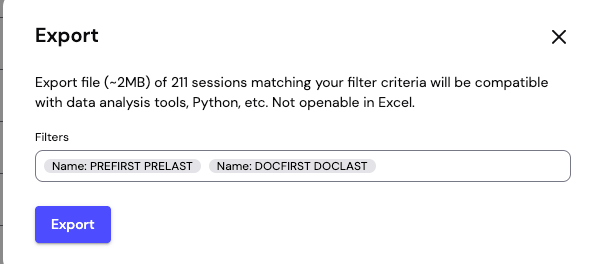 7. Click **Export**. A progress banner appears at the top of the portal.
While the export runs, the progress banner shows how many sessions have been exported and the elapsed time. You can navigate to other pages in the portal without interrupting the export. To stop the export, click the cancel icon **X** in the banner.
When the export completes, the .jsonl file downloads to your device automatically.
If your export contains more than 20,000 sessions, then it's split into multiple files, for example, `sessions_export_part1.jsonl` and `sessions_export_part2.jsonl`.
## Export file format
To see the structure of an export file, download the sample file below. It contains 42 journey sessions from the preview environment and uses test data only.
Download sample export
## Work with .jsonl files
You can inspect an exported file from the terminal on macOS or Linux:
```bash Bash theme={null}
# View the first two sessions, formatted with jq
head -n 2 sessions_export.jsonl | jq .
# Count the number of sessions in the file
wc -l sessions_export.jsonl
```
You can also load the file in Python:
```python Python theme={null}
import json
sessions = []
with open("sessions_export.jsonl", "r", encoding="utf-8") as f:
for line in f:
sessions.append(json.loads(line.strip()))
print(f"Loaded {len(sessions)} sessions.")
```
## FAQ
Exporting sessions requires permission to export journey sessions, and the feature must be enabled for your organisation. Ask your organisation administrator to check your user role.
The export follows the data masking rules that apply to your user role. Fields that are masked in the Investigation portal stay masked in the exported file.
No. Journey session data is nested, for example, a session can include several document scans and checks. The .jsonl format keeps the full structure of each session without flattening or losing data.
The progress banner displays an error message with a **Retry** option. If you close the banner, then you can restart the export with the same filters.
7. Click **Export**. A progress banner appears at the top of the portal.
While the export runs, the progress banner shows how many sessions have been exported and the elapsed time. You can navigate to other pages in the portal without interrupting the export. To stop the export, click the cancel icon **X** in the banner.
When the export completes, the .jsonl file downloads to your device automatically.
If your export contains more than 20,000 sessions, then it's split into multiple files, for example, `sessions_export_part1.jsonl` and `sessions_export_part2.jsonl`.
## Export file format
To see the structure of an export file, download the sample file below. It contains 42 journey sessions from the preview environment and uses test data only.
Download sample export
## Work with .jsonl files
You can inspect an exported file from the terminal on macOS or Linux:
```bash Bash theme={null}
# View the first two sessions, formatted with jq
head -n 2 sessions_export.jsonl | jq .
# Count the number of sessions in the file
wc -l sessions_export.jsonl
```
You can also load the file in Python:
```python Python theme={null}
import json
sessions = []
with open("sessions_export.jsonl", "r", encoding="utf-8") as f:
for line in f:
sessions.append(json.loads(line.strip()))
print(f"Loaded {len(sessions)} sessions.")
```
## FAQ
Exporting sessions requires permission to export journey sessions, and the feature must be enabled for your organisation. Ask your organisation administrator to check your user role.
The export follows the data masking rules that apply to your user role. Fields that are masked in the Investigation portal stay masked in the exported file.
No. Journey session data is nested, for example, a session can include several document scans and checks. The .jsonl format keeps the full structure of each session without flattening or losing data.
The progress banner displays an error message with a **Retry** option. If you close the banner, then you can restart the export with the same filters.