> ## Documentation Index
> Fetch the complete documentation index at: https://docs.go.gbgplc.com/llms.txt
> Use this file to discover all available pages before exploring further.
# How to restore journeys to a previous version
> Revert a GBG GO journey to an earlier version to undo recent changes or return to a stable configuration.
GBG GO allows you to revert a journey to an earlier version. This is useful when you need to undo recent changes or return to a stable configuration.
When you restore a previous version, the system re-publishes that version to preview and updates your draft with the restored flow configuration.
## Understand version states
As you modify and publish a journey, GBG GO tracks each version:
* **Preview version**: The most recent version published to preview
* **Production version**: The version currently live for customers
* **Draft version**: Your working copy with unpublished changes
The Dashboard displays a **Behind** indicator when your production version lags behind the preview version. This shows that production is using an older configuration.
## Create and publish journey with multiple versions
### Step 1: Create a journey
Follow these steps to create a journey:
1. Log in to the GBG GO Dashboard.
2. Click the **Create a new journey** list.
3. Select **API only (v1)** to open the journey builder.
4. Add a module to the journey.
5. Click **Publish to Preview**.
6. Navigate to **Dashboard**.
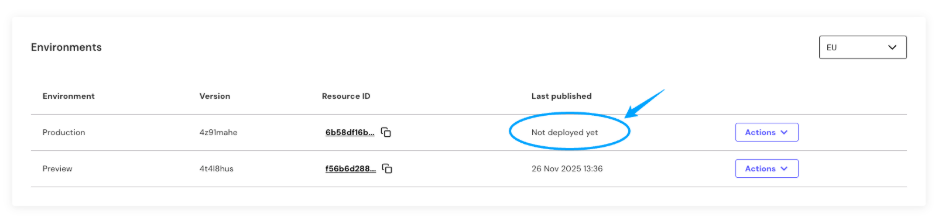
On the Dashboard, the production environment *Last Published* column indicates that the journey isn't deployed to production yet, displaying "Not deployed yet."
 ### Step 2: Publish journey to production
To publish the journey to production:
1. Click the **Actions** list.
2. Click **Publish to Production**.
3. Select the confirmation checkbox.
4. Click **Publish to production**.
The "Not deployed yet" status changes and displays the deployment time and date.
### Step 3: Create a new version
Now that you have a journey published to both preview and production, when you make changes to your journey in the Journey builder, the system automatically versions your journey.
To make a change to the journey:
1. Navigate back to the Journey builder.
2. Add a new module to the journey.
3. Click **Publish to Preview**.
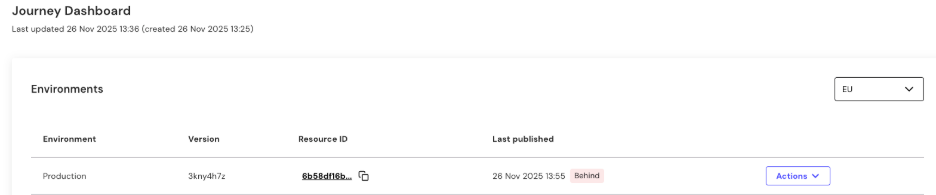
When you navigate back to the Dashboard, you see the *Behind* indicator. This shows that the journey published to production is now behind the preview version.
### Step 2: Publish journey to production
To publish the journey to production:
1. Click the **Actions** list.
2. Click **Publish to Production**.
3. Select the confirmation checkbox.
4. Click **Publish to production**.
The "Not deployed yet" status changes and displays the deployment time and date.
### Step 3: Create a new version
Now that you have a journey published to both preview and production, when you make changes to your journey in the Journey builder, the system automatically versions your journey.
To make a change to the journey:
1. Navigate back to the Journey builder.
2. Add a new module to the journey.
3. Click **Publish to Preview**.
When you navigate back to the Dashboard, you see the *Behind* indicator. This shows that the journey published to production is now behind the preview version.
 To keep production up to date with preview:
1. Click the **Actions** list for the production environment.
2. Click **Publish to Production**.
3. Select the confirmation checkbox.
4. Click **Publish to production**.
The *Behind* indicator disappears, and the production version is now up to date. You also receive an updated production version number.
### Step 4: Restore journey to a previous version
Once you have multiple versions, you can restore a journey to an earlier version:
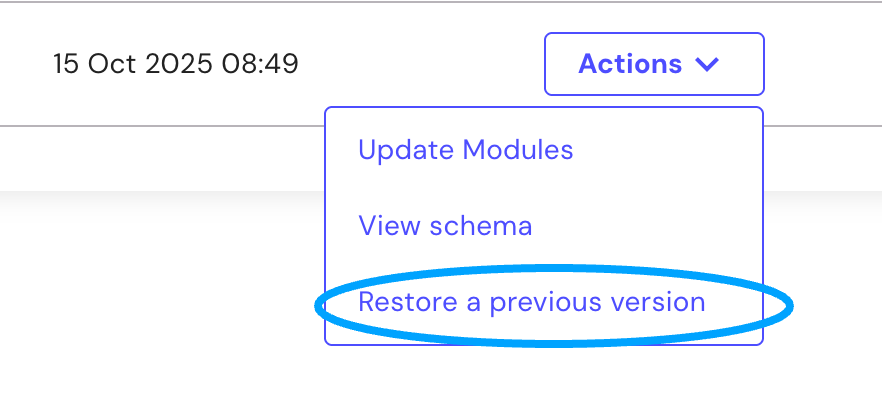
1. Click the **Actions** list of the preview environment.
2. Click **Restore a previous version**.
To keep production up to date with preview:
1. Click the **Actions** list for the production environment.
2. Click **Publish to Production**.
3. Select the confirmation checkbox.
4. Click **Publish to production**.
The *Behind* indicator disappears, and the production version is now up to date. You also receive an updated production version number.
### Step 4: Restore journey to a previous version
Once you have multiple versions, you can restore a journey to an earlier version:
1. Click the **Actions** list of the preview environment.
2. Click **Restore a previous version**.
 3. Select a journey version from the version list to re-publish to preview.
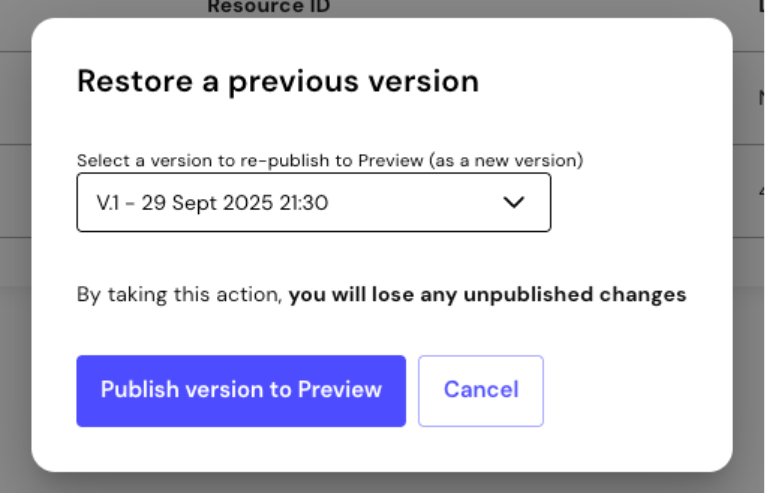 4. Click **Publish version to Preview**.
The journey is reverted to the selected previous version. You can also see the changes reflected in the journey builder.
## What happens during restoration
When you restore a previous version:
* The system extracts the journey flow from the selected version
* That flow is re-published to the preview environment
* Your draft is updated to match the restored configuration
* A new version number is assigned to track this restoration
4. Click **Publish version to Preview**.
The journey is reverted to the selected previous version. You can also see the changes reflected in the journey builder.
## What happens during restoration
When you restore a previous version:
* The system extracts the journey flow from the selected version
* That flow is re-published to the preview environment
* Your draft is updated to match the restored configuration
* A new version number is assigned to track this restoration